Instagram Integration
To connect an Instagram account standalone (without a Facebook Page), create and configure an Instagram app via the Meta for Developers portal.
If you want to connect Instagram through a Facebook Business account instead, follow the Facebook & Instagram integration guide.
Only Instagram Professional accounts (Business or Creator) can be connected. Personal Instagram accounts are not supported by the Instagram API.
1. Create a Developer account
To create an Instagram app, you must first have a Meta developer account. If you don't already have one, go to the Facebook for Developers website and click Get Started in the top right corner. Follow the instructions to sign up for a developer account.
2. Create a new app
If you already have a Facebook application, we recommend reusing it for Instagram instead of creating a separate app.
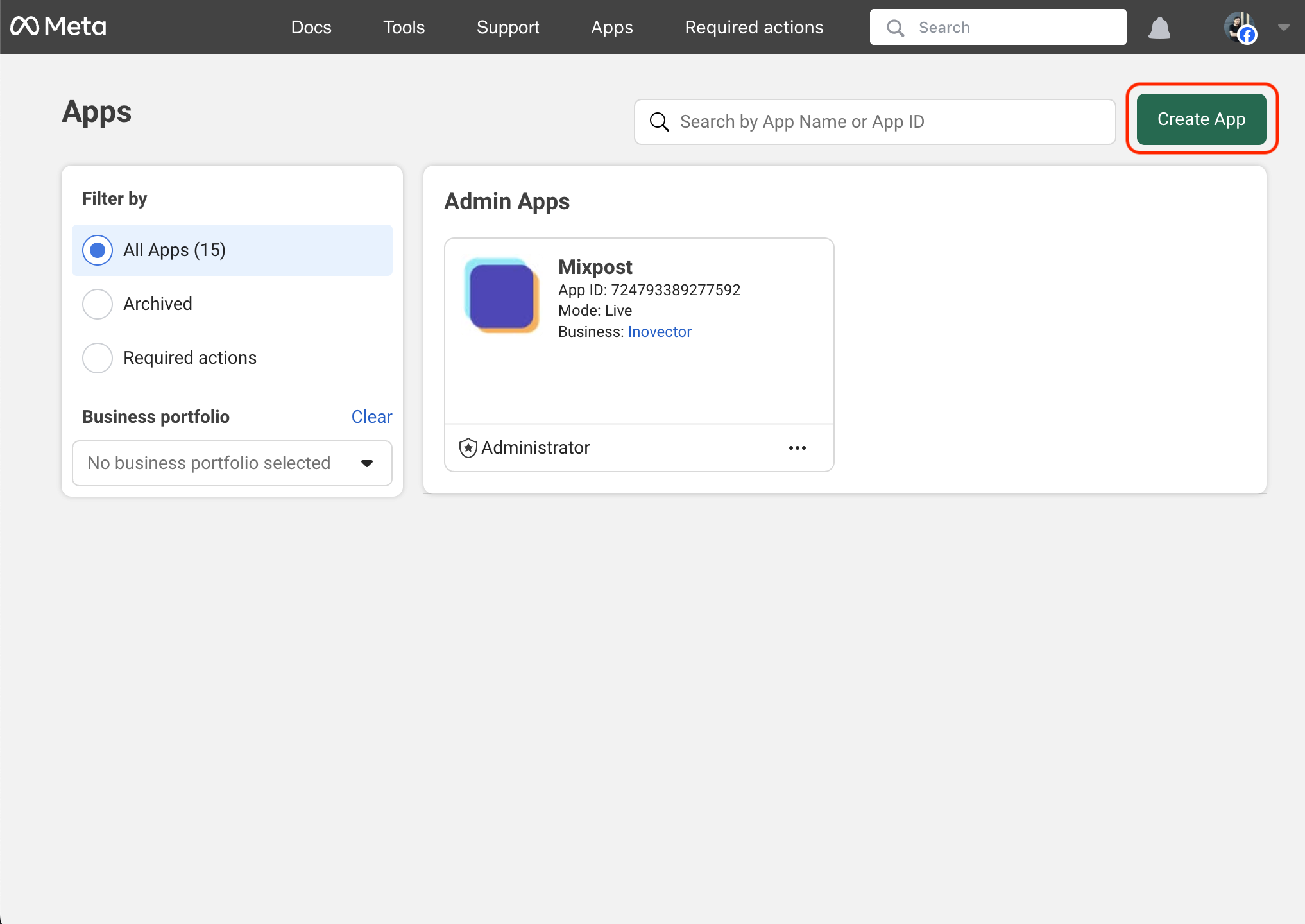
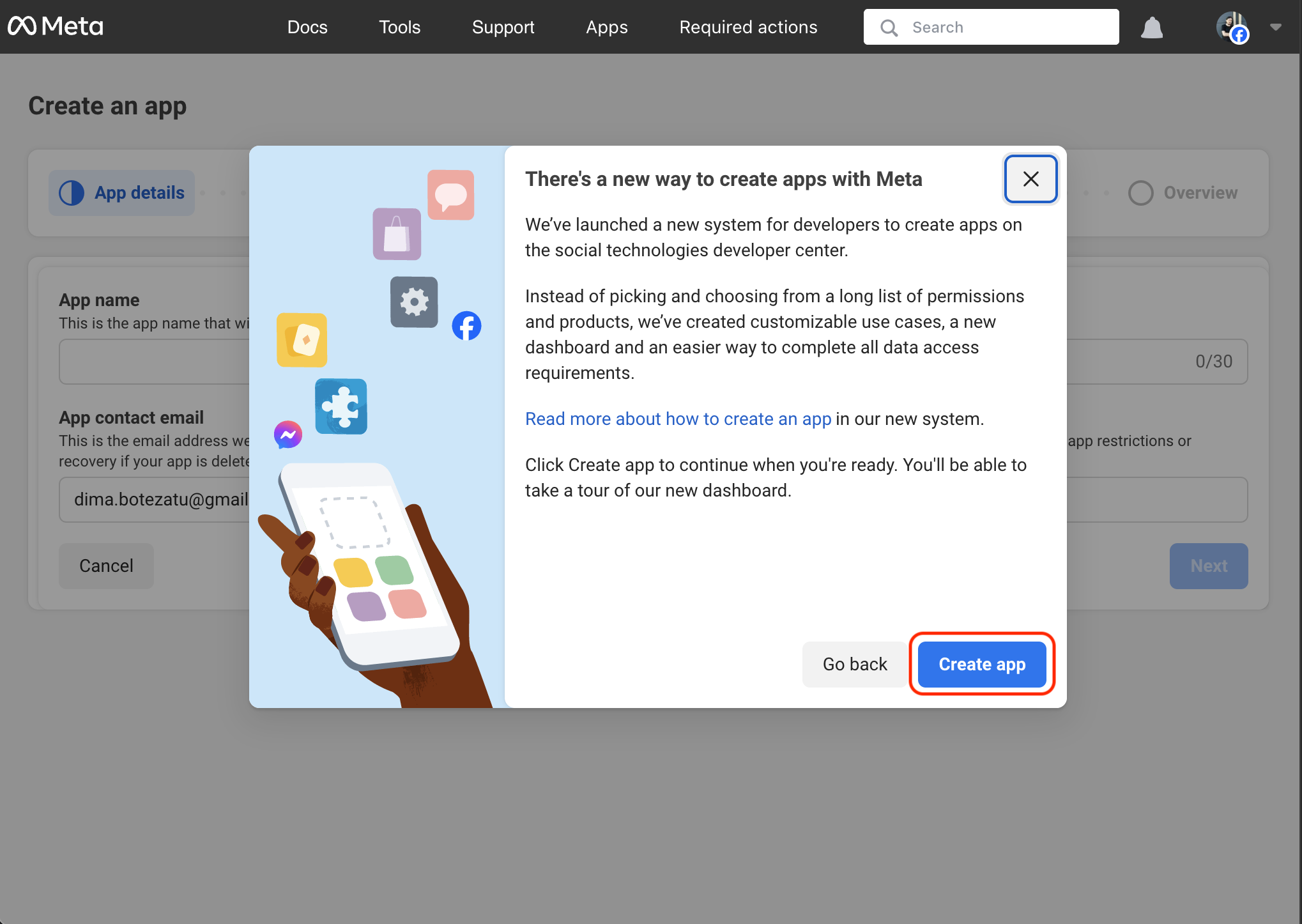
Once you have a developer account, go to the Facebook Developer Dashboard and click Create App in the top right corner.
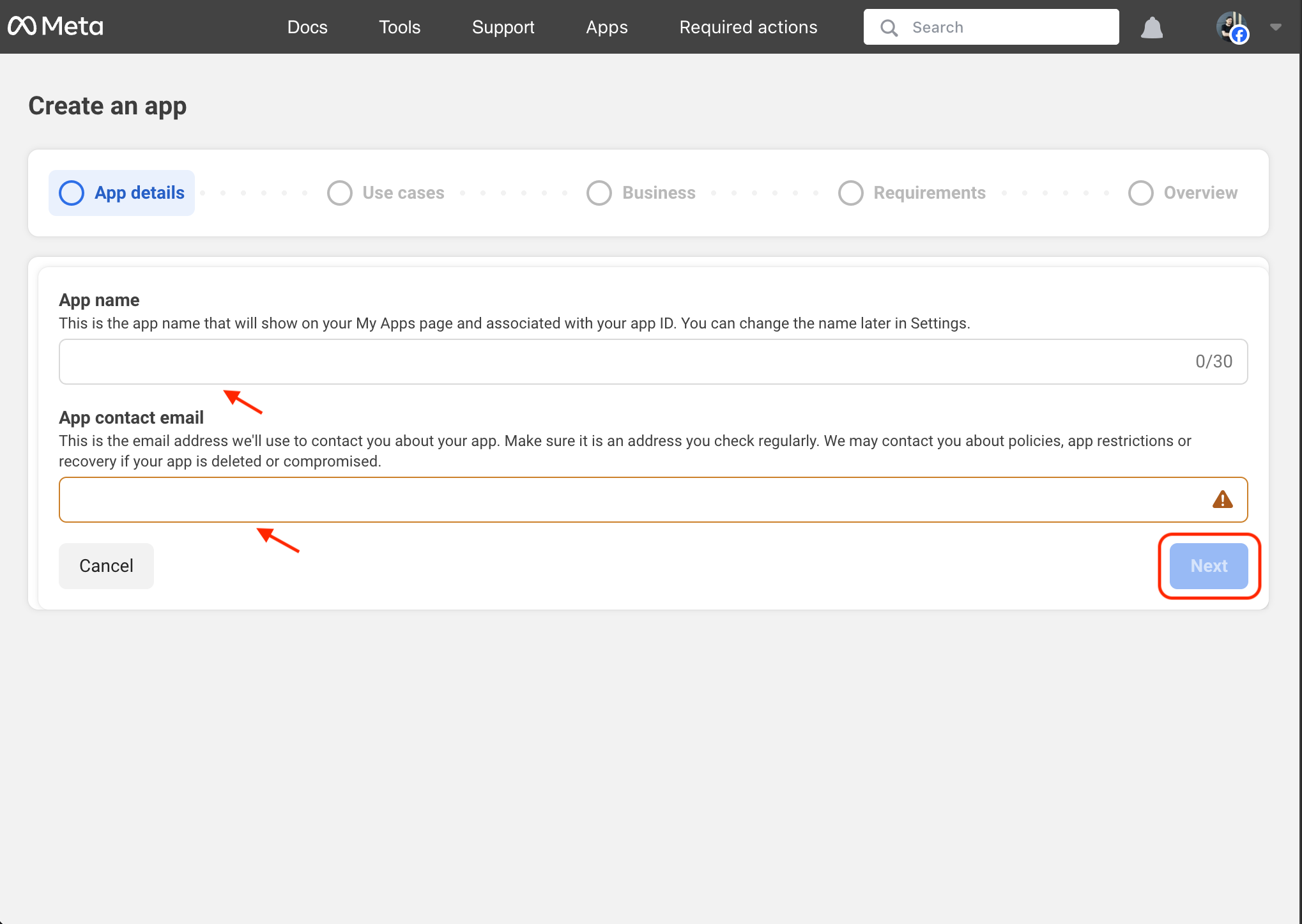
- Enter your application’s name and your email address.
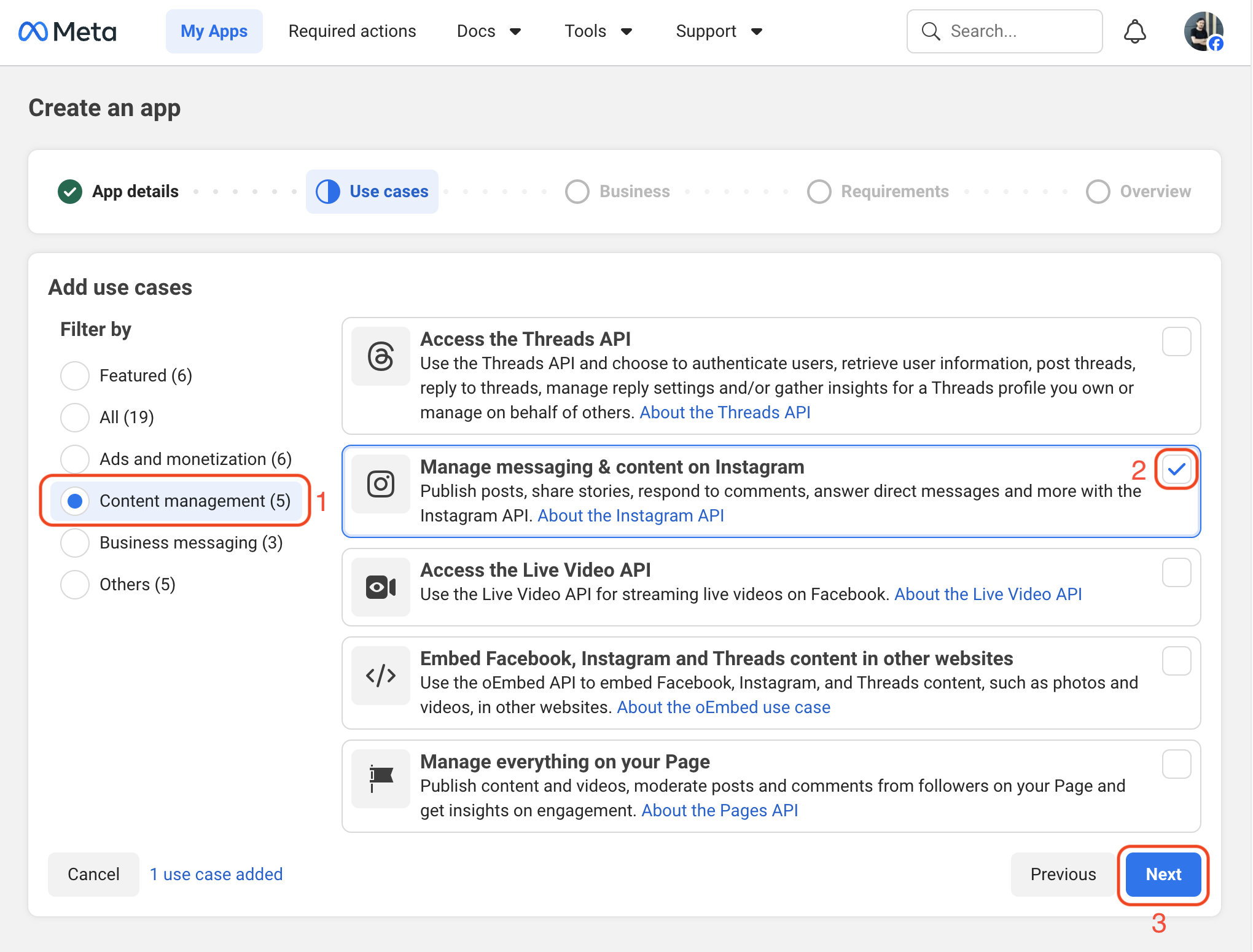
- Select Content management as the use case filter.
- Select Manage messaging & content on Instagram as the use case.
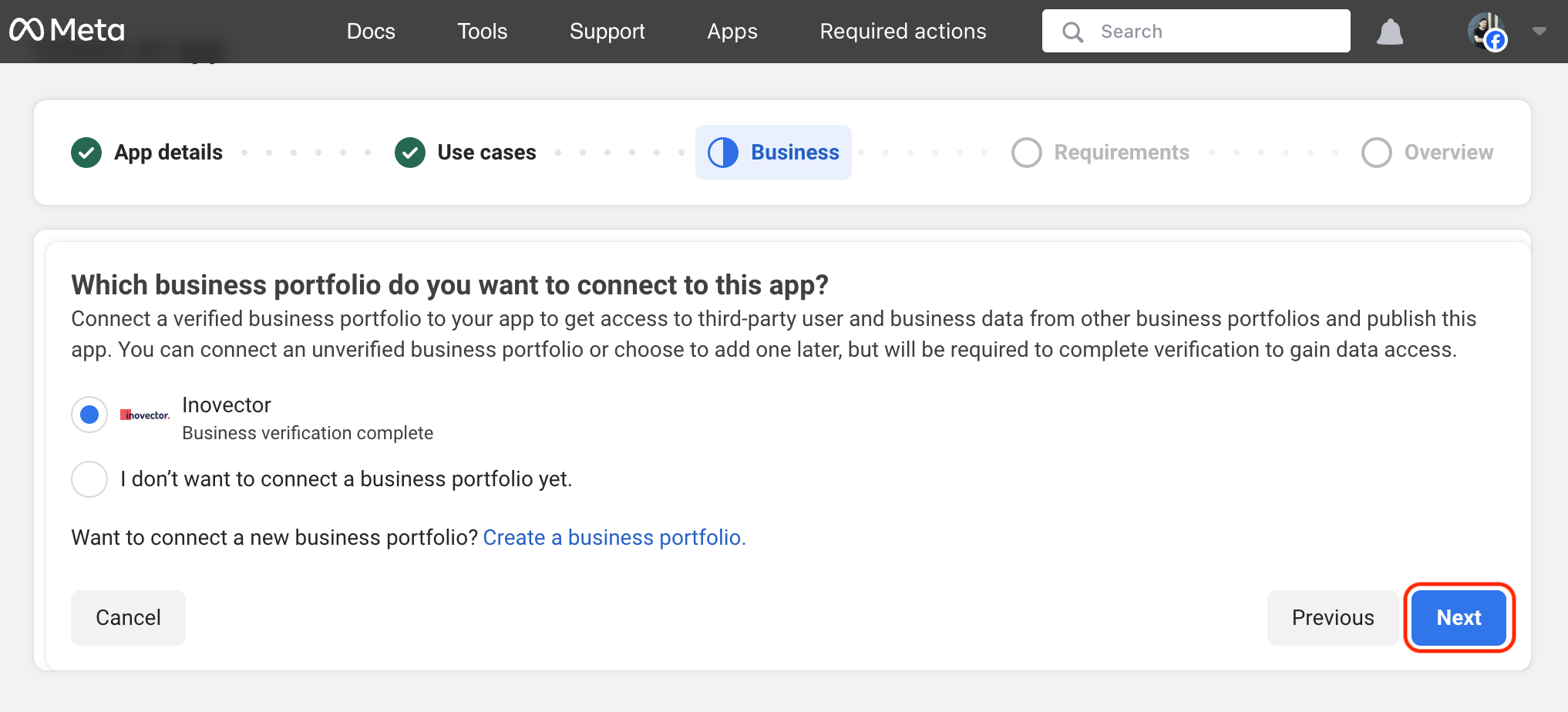
- Select your business portfolio.
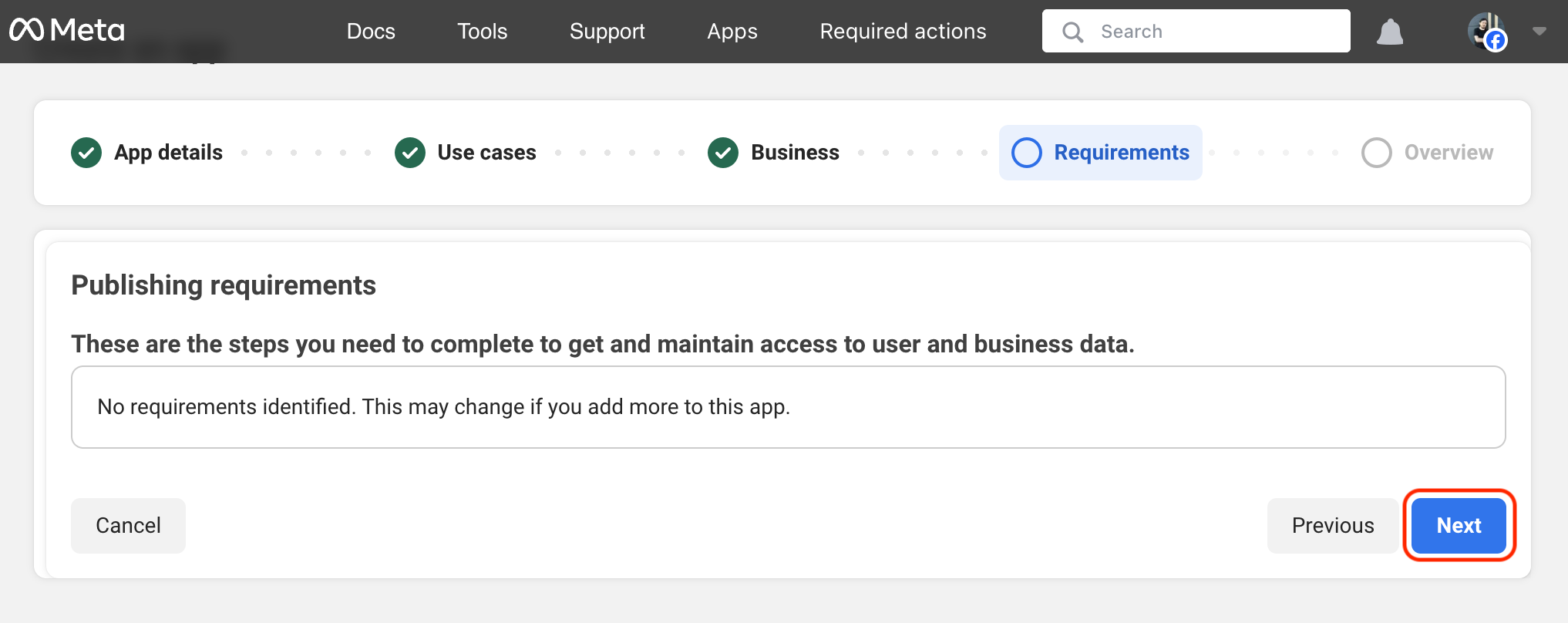
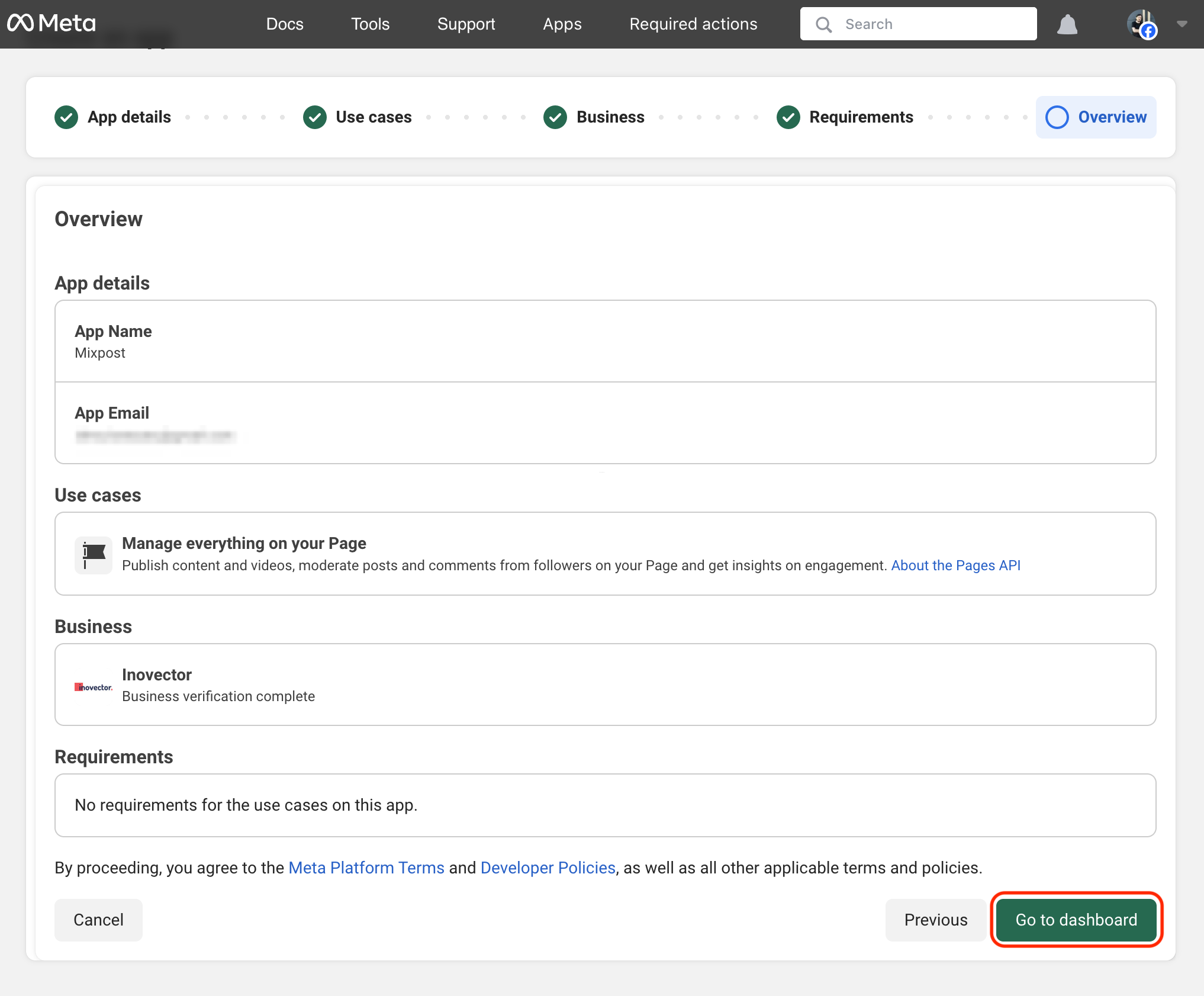
- Review the details and click the Go to dashboard button.
Screenshots:
3. Add permissions
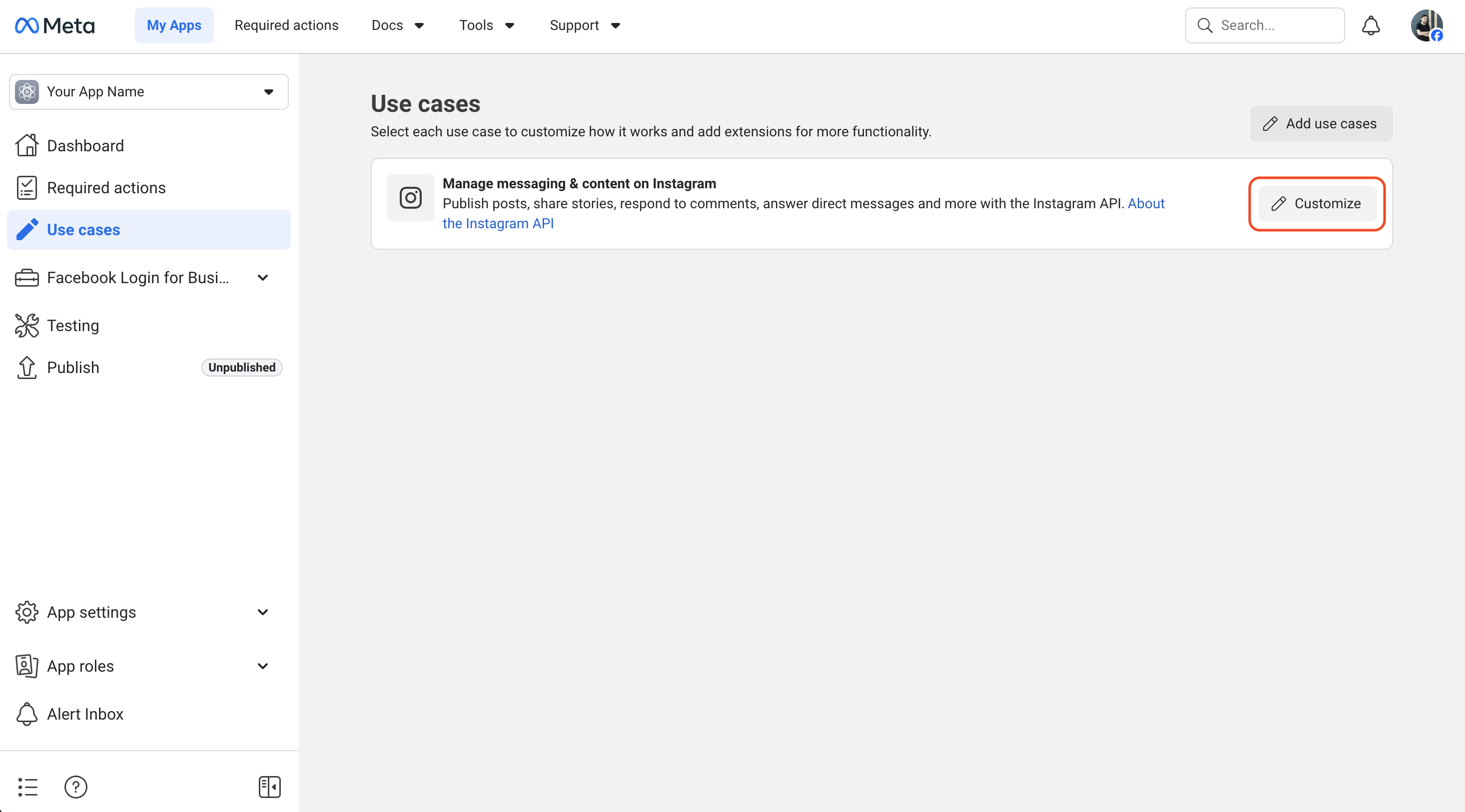
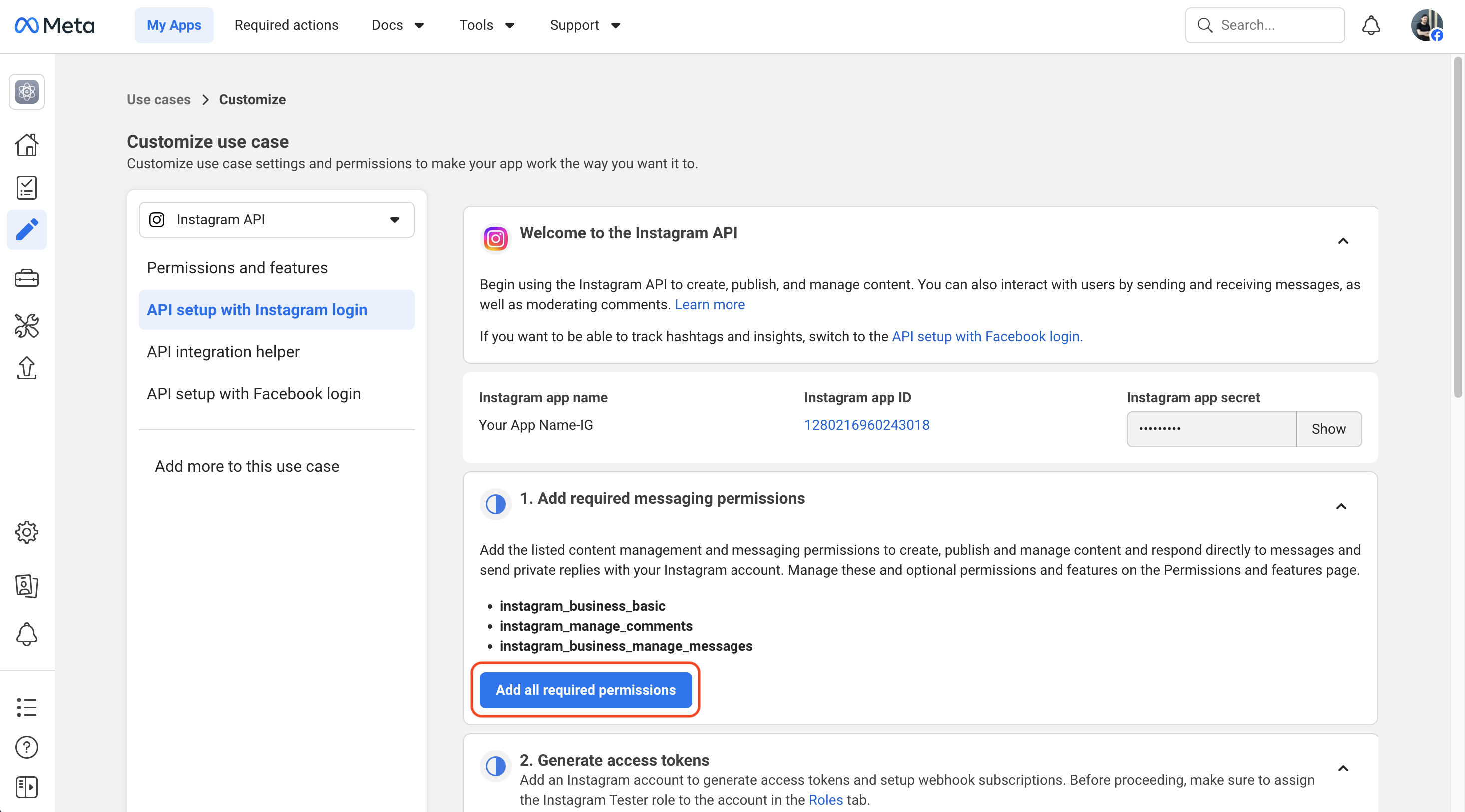
- From the sidebar, click on Use Cases, locate Manage messaging & content on Instagram, and click the Customize button.
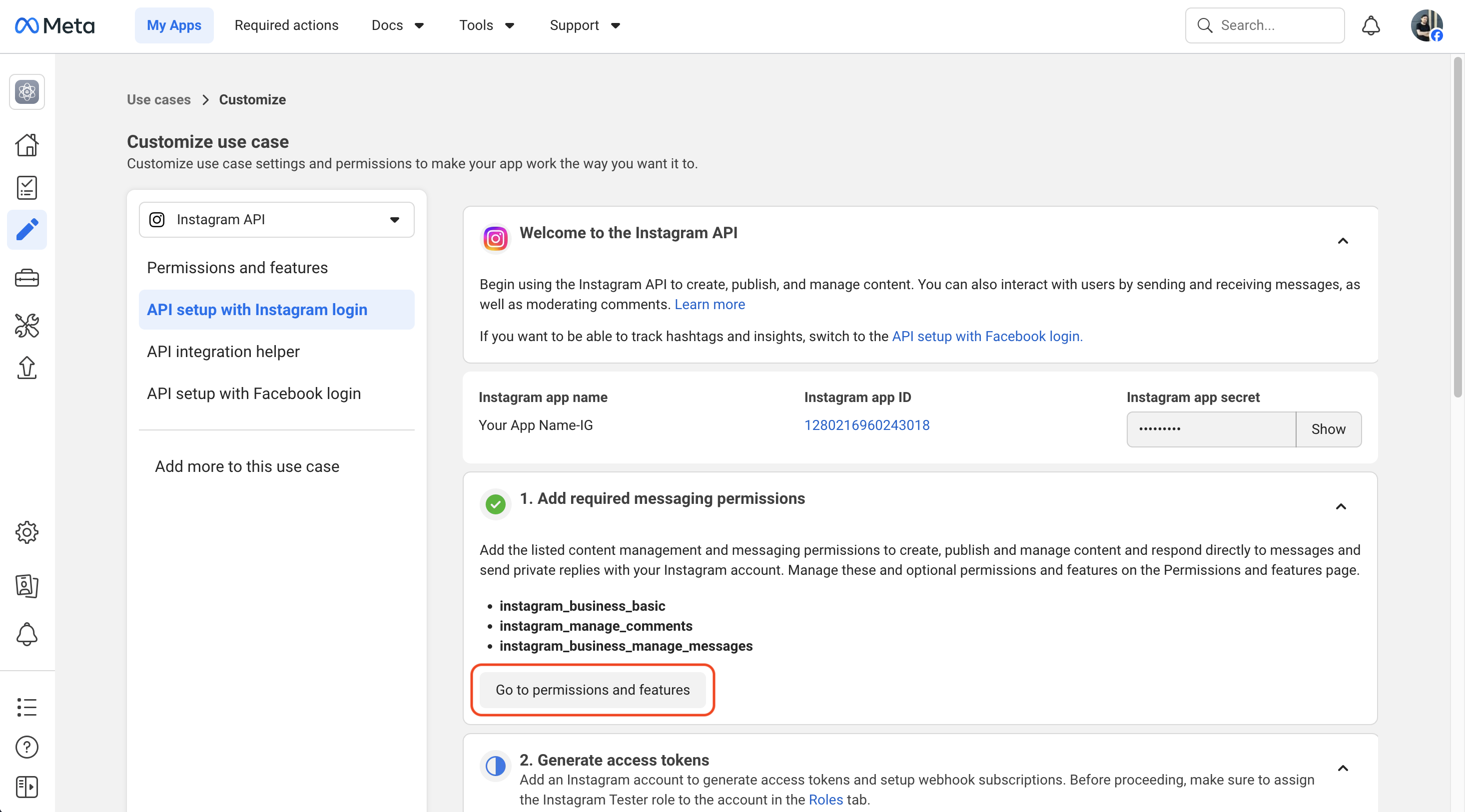
- Click Add all required permissions.
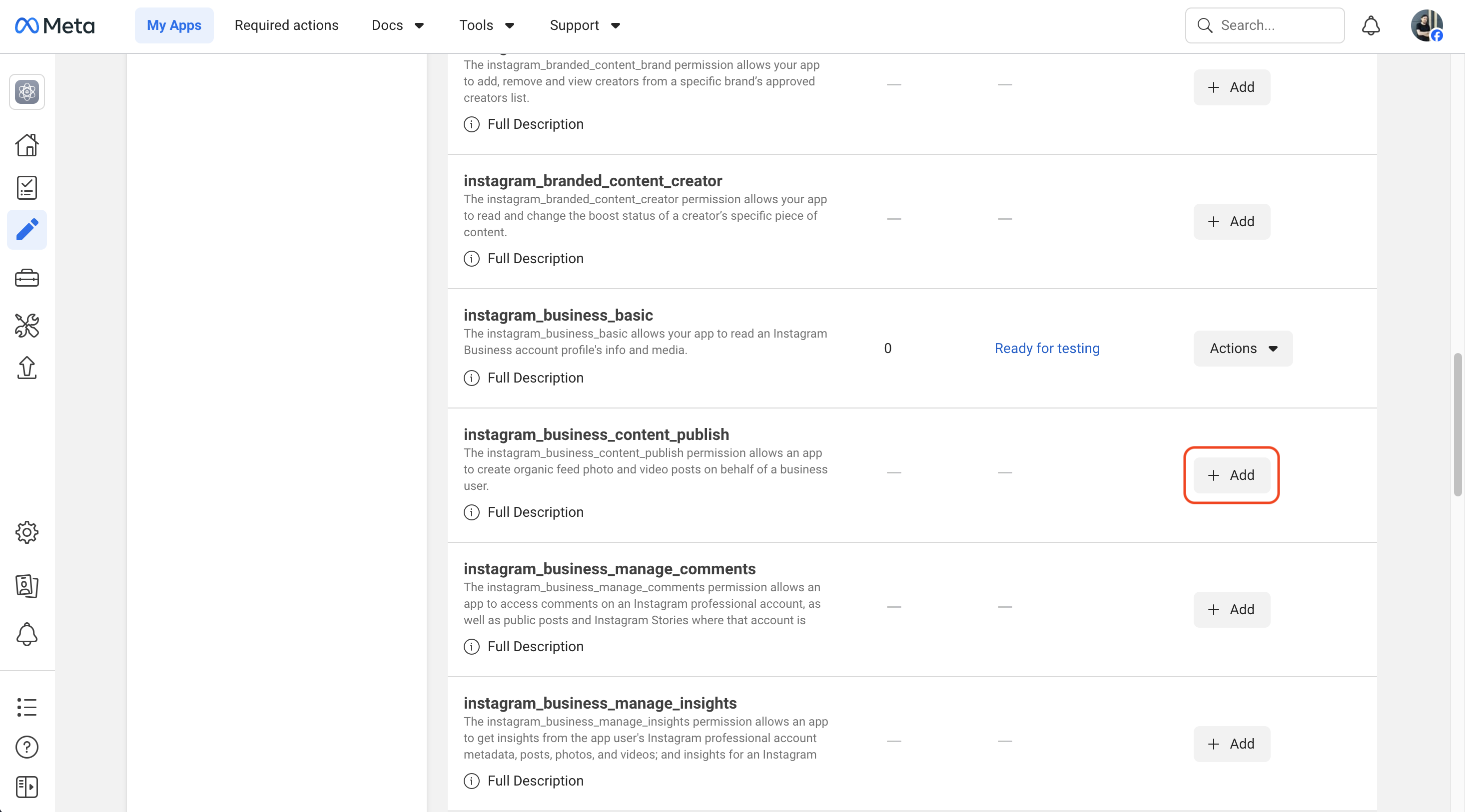
- Click Add permissions and features to add additional permissions.
- Add the following permissions:
instagram_business_content_publishinstagram_business_manage_commentsinstagram_business_manage_insights
Screenshots:
4. Configure redirect URIs
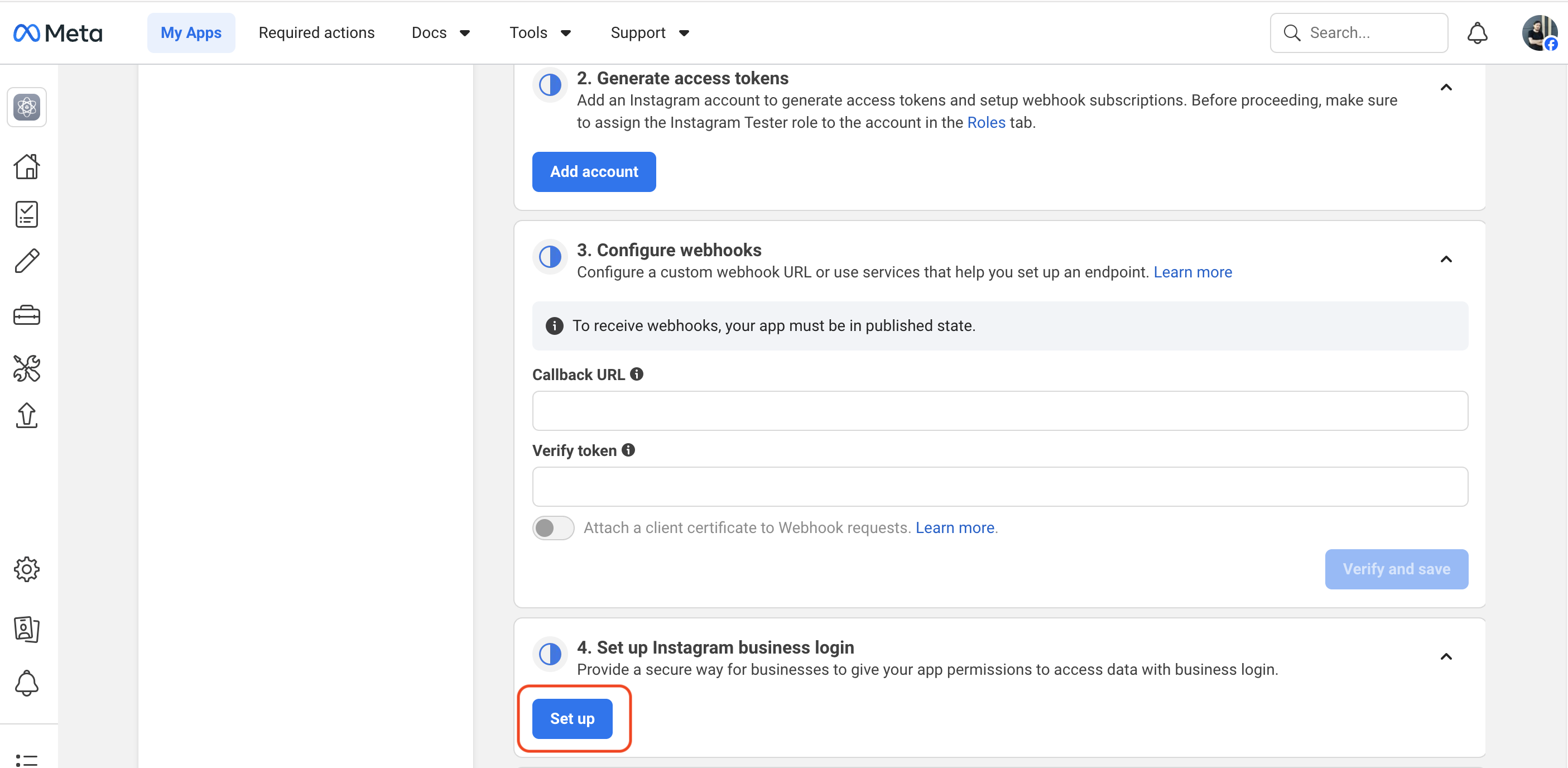
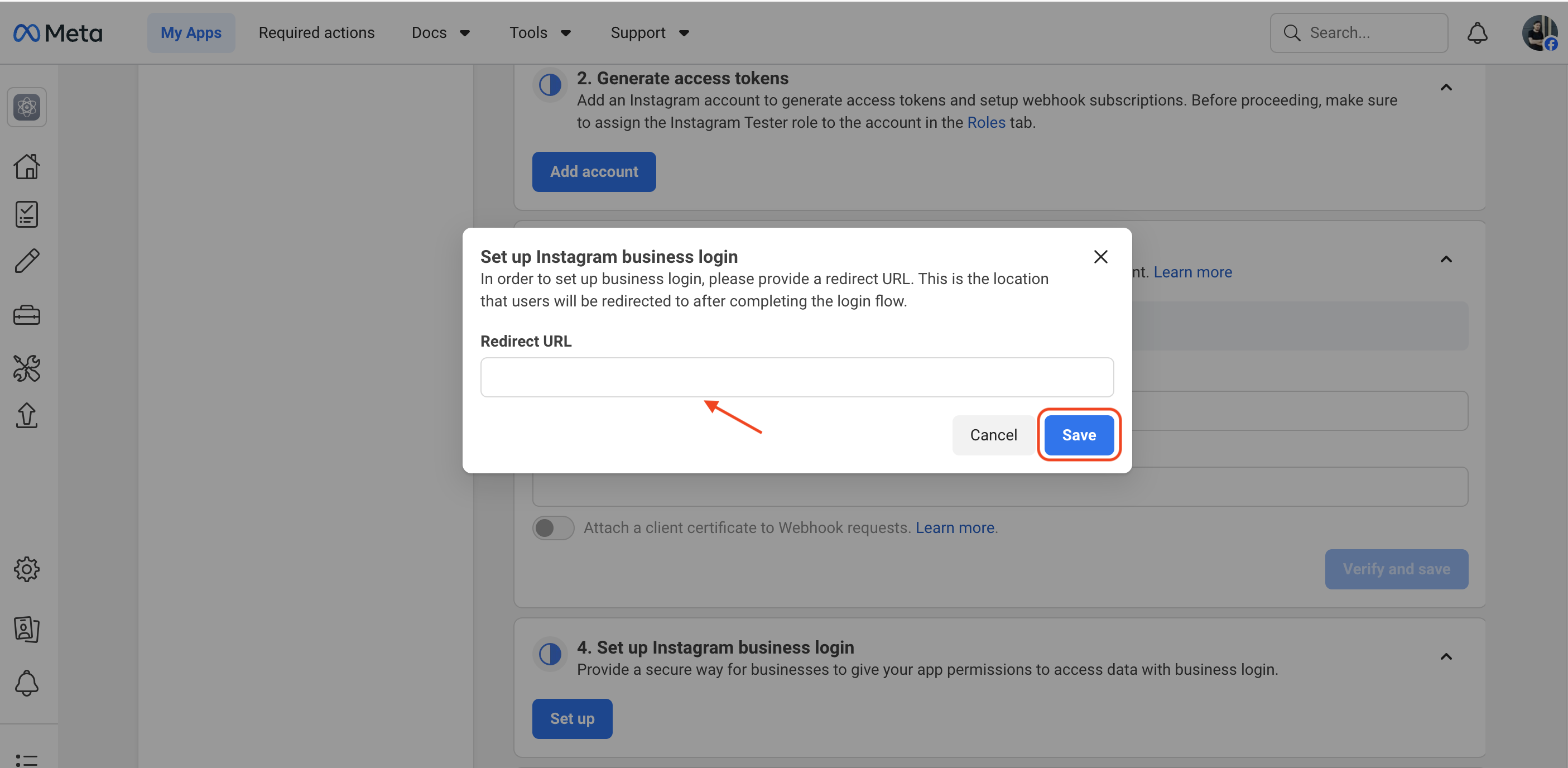
- On the same page, scroll to the Set up Instagram business login section and click the Set up button.
- Add the following Redirect URL and save.
https://example.com/callback/instagram_standalone
Is Mixpost under a path? e.g. https://example.com/<path>/...
Keep that path in every address on this page, or the connection fails. The provider's form in the dashboard shows the exact Redirect URI, ready to copy — the other addresses here use the same path.
Not sure what this means? Skip this note.
Screenshots:
5. Copy the credentials to Mixpost
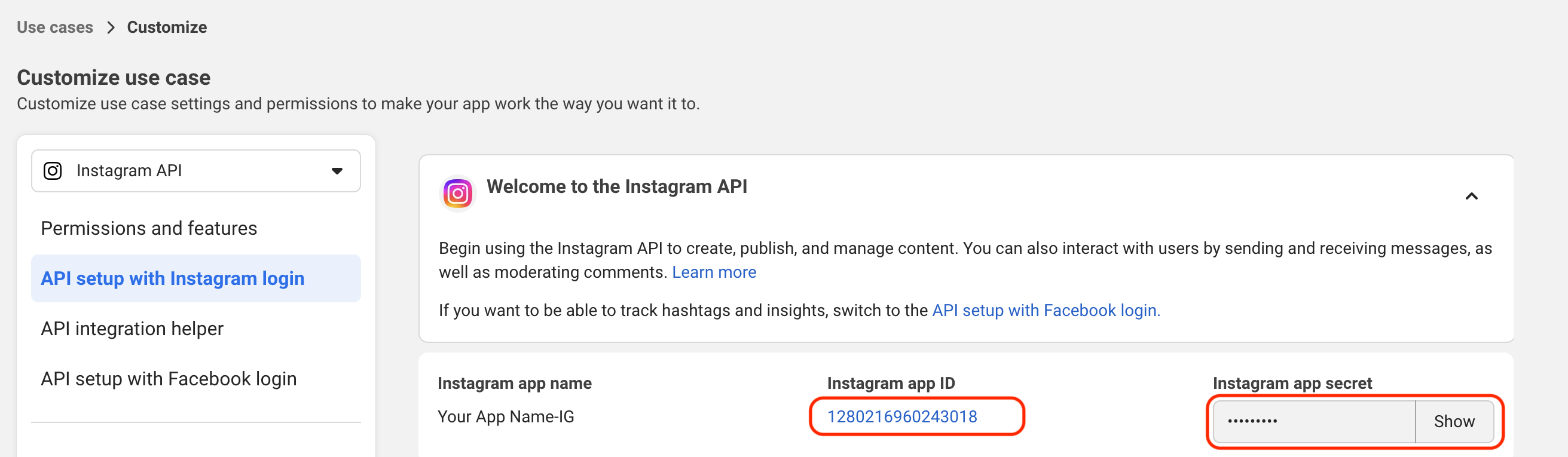
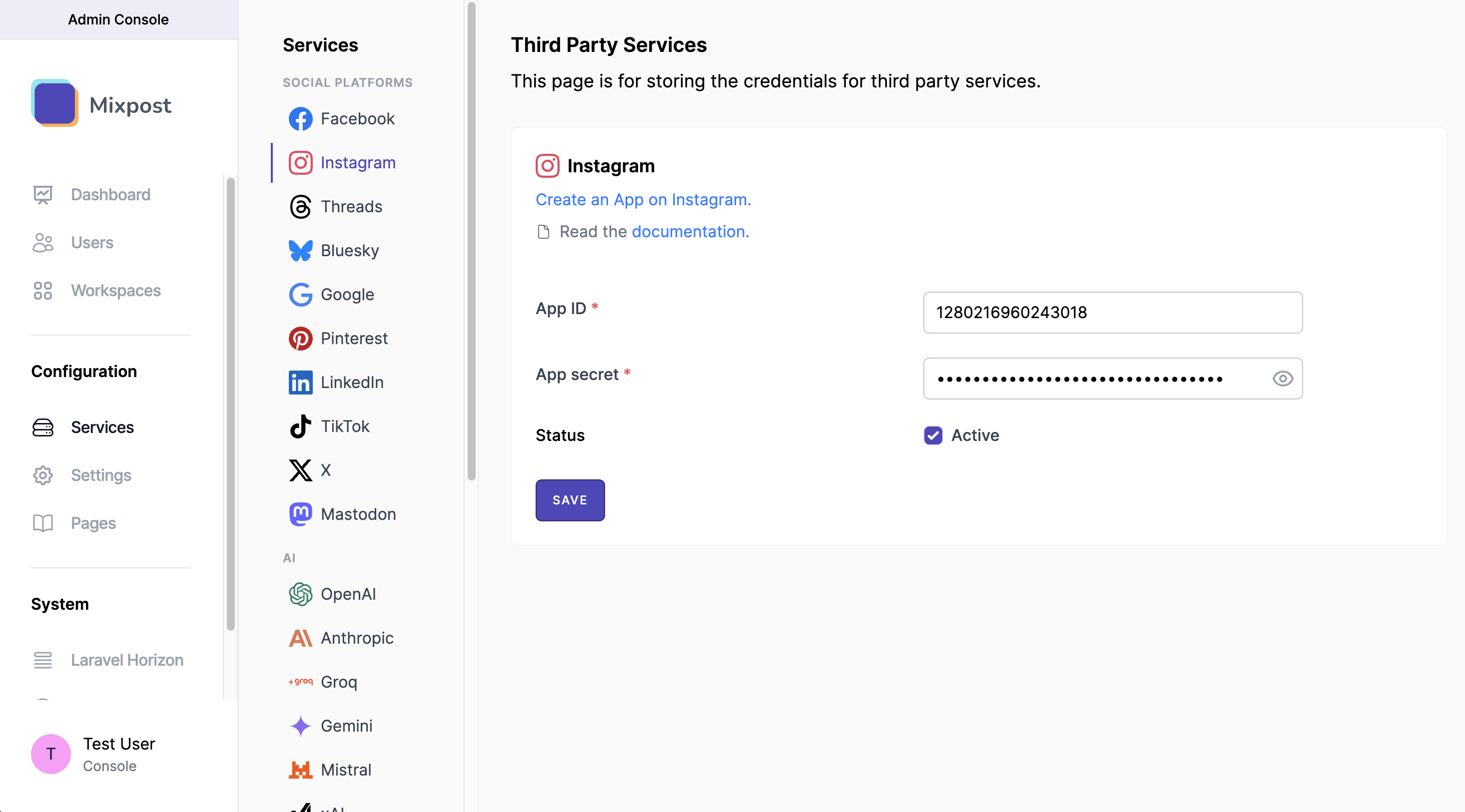
On the same page, scroll to the Instagram App ID and Instagram App Secret sections and copy the credentials into the corresponding fields of the Instagram form in Mixpost.
- Pro and Enterprise
- Lite
Navigate to the User Menu at the bottom left, click Admin Console, and then click on Services from the left sidebar.
Click on Services from the left sidebar.
The Instagram third-party service is separate from the Facebook service. Make sure to paste the credentials into the Instagram form, not the Facebook form.
Screenshots:
6. Add Instagram testers
Before the app is published, only users added as Instagram testers can connect their accounts.
6.1 Add tester
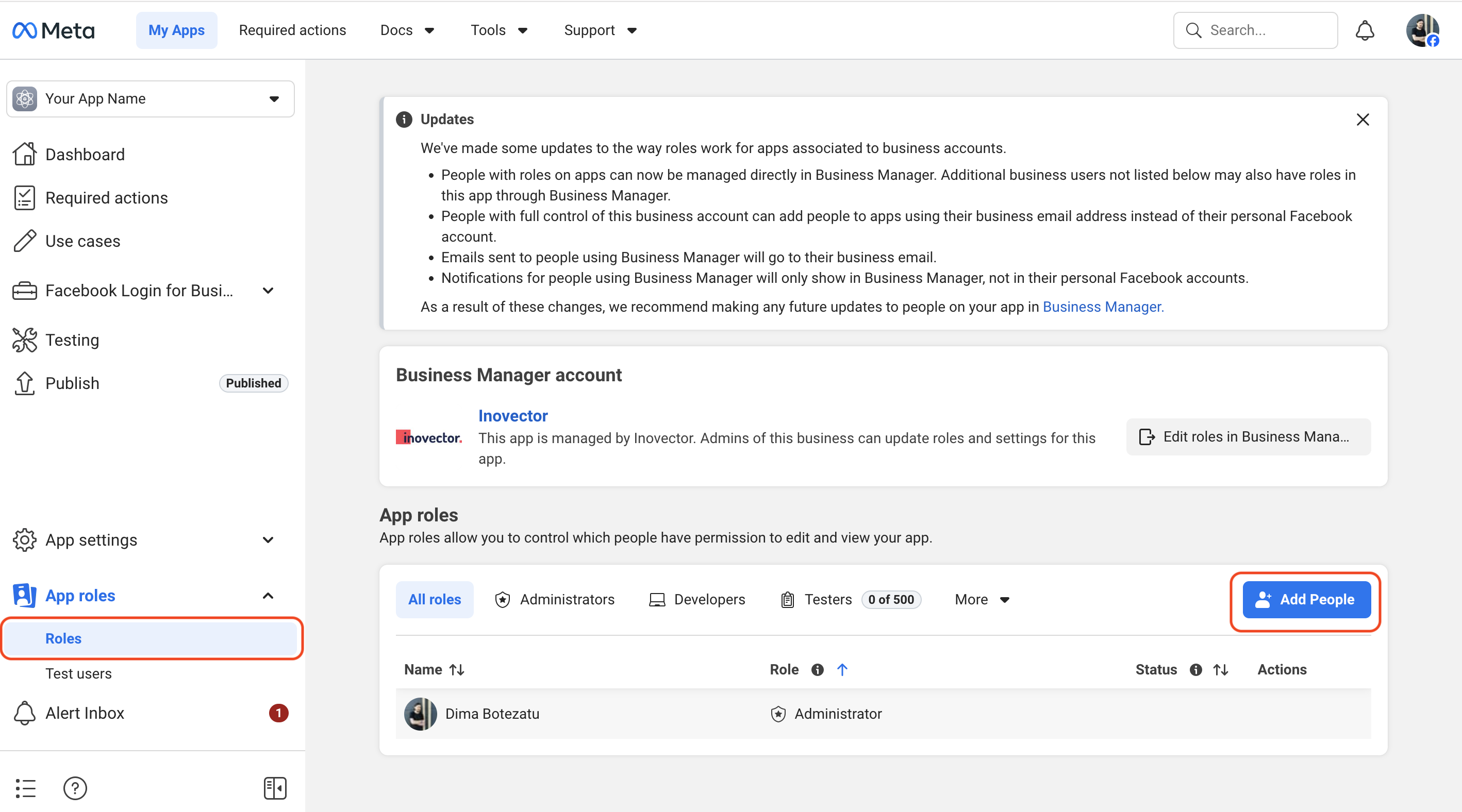
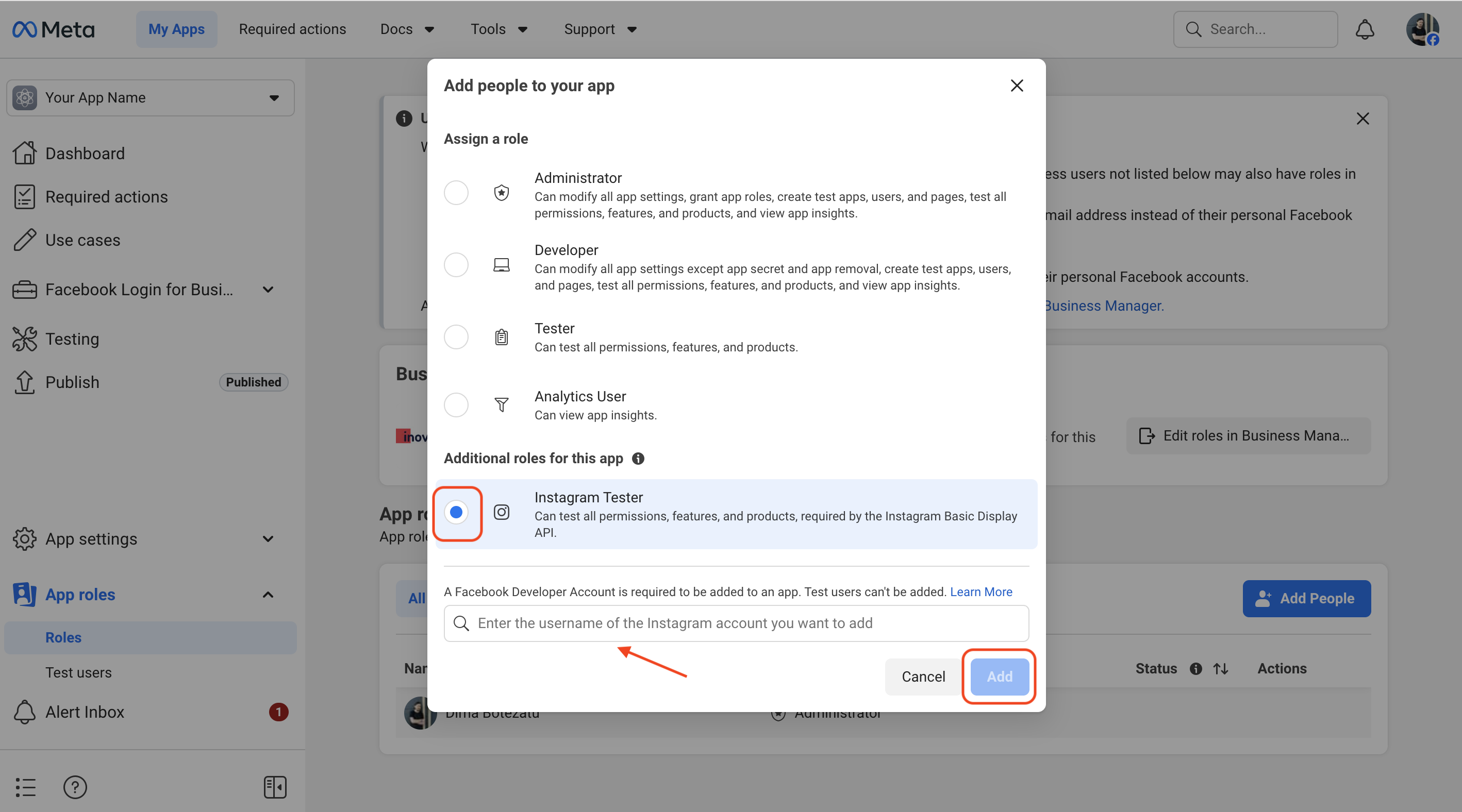
- Select App roles -> Roles in the left sidebar.
- Click Add people.
- Choose Instagram Tester.
- Enter the Instagram username of the account you want to test with and send the invite.
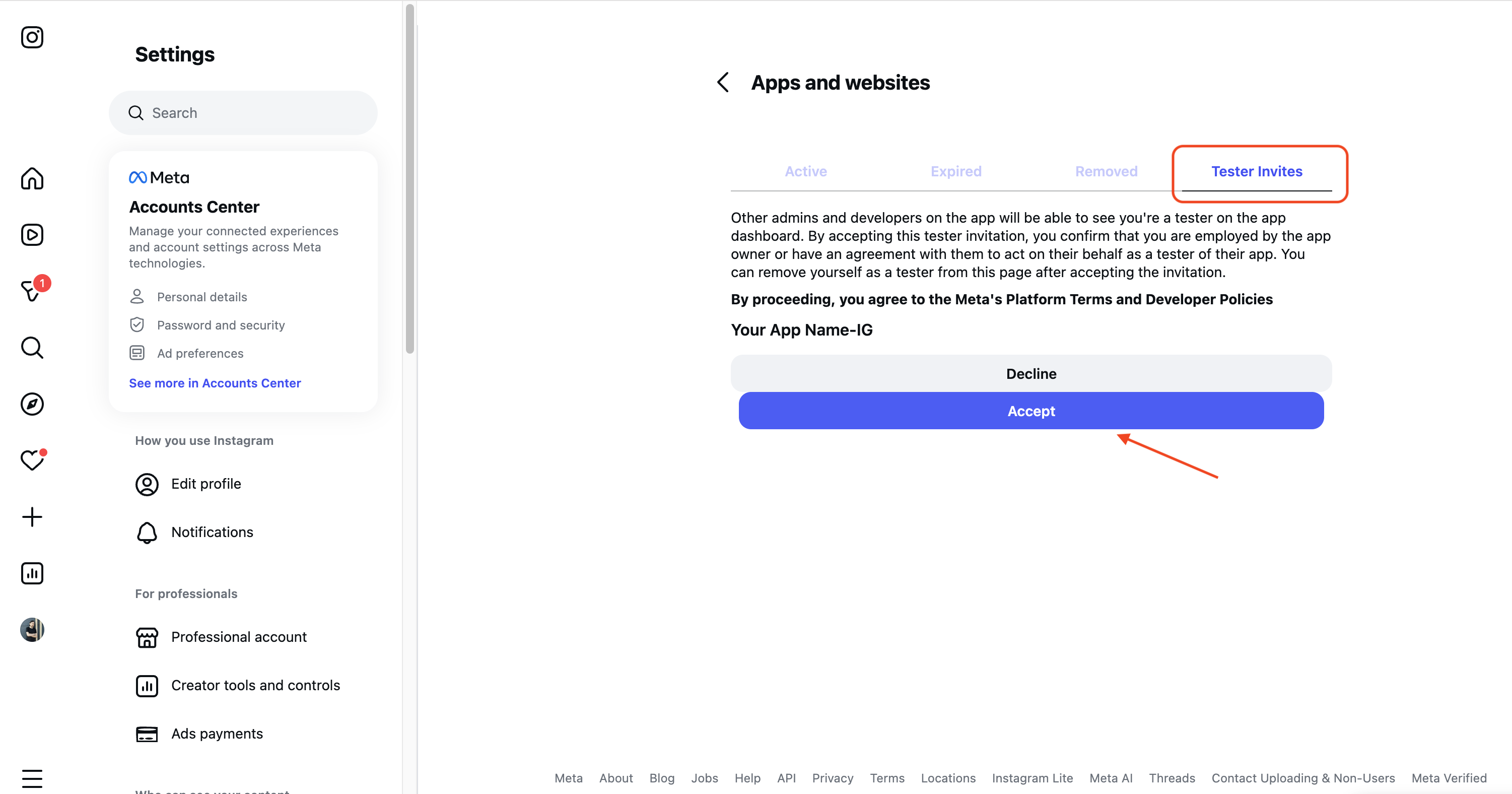
6.2 Accept the invitation as a tester
- Log in to the invited Instagram account at instagram.com.
- Go to Settings -> Apps and websites -> Tester invites.
- Accept the invitation for your app.
Screenshots:
7. Testing and verification
You can now test by adding your Instagram account to Mixpost. We recommend creating a few test posts to ensure everything is functioning correctly.
- Pro and Enterprise
- Lite
Navigate to a workspace, then select Social Accounts from the left sidebar and click Add Account.
Lite package does not support this social platform. Unlock Pro features
Until your app is published, only Instagram accounts added as testers can connect. To allow any Instagram Professional account to connect, you must submit your app for Meta review and publish it.
8. Configure the Engagement (optional)
The Engagement brings Instagram comments and mentions into Mixpost's Inbox in real time, delivered through Meta webhooks. Setup has two parts: enable webhooks in Mixpost, then register the callback URL in the Meta dashboard. Once enabled, Mixpost automatically subscribes each connected Instagram account — there is no per-account step in the dashboard.
The Engagement must be enabled in your Mixpost installation for the Enable Webhooks switch and the inbox-webhook endpoint to be available.
8.1 Enable webhooks in Mixpost
- Open the Instagram third-party service form in Mixpost (the same form where you pasted the App ID and secret in step 5).
- Turn on the Enable Webhooks switch.
- In the Webhook Verify Token field, click the generate button (or enter your own random string). Meta sends this value back to Mixpost during the handshake, so keep it handy for the next step.
- Save the service.
- Pro and Enterprise
- Lite
Navigate to the User Menu at the bottom left, click Admin Console, and then click on Services from the left sidebar.
Click on Services from the left sidebar.
8.2 Register the callback URL in the Meta dashboard
- From the sidebar, open Use Cases, locate Manage messaging & content on Instagram, click Customize, and open the Webhooks section.
- Set the Callback URL to:
https://example.com/inbox-webhook/instagram_standalone
- Set the Verify token to the exact same value you saved in Mixpost in step 8.1.
- Click Verify and save. Meta calls your callback URL to confirm the token matches.
- Subscribe to the
commentsandmentionsfields.
Is Mixpost under a path? e.g. https://example.com/<path>/...
Keep that path in every address on this page, or the connection fails. The provider's form in the dashboard shows the exact Redirect URI, ready to copy — the other addresses here use the same path.
Not sure what this means? Skip this note.
Ensure the instagram_business_manage_comments permission (step 3) is added — without it, comment webhooks are not delivered.
- Your App Secret (step 5) validates the signature of every incoming webhook, so no extra credential is needed. The callback URL must be publicly reachable over HTTPS.
- Mixpost subscribes each account to webhooks when it connects. Accounts added before you enabled webhooks must be reconnected to start receiving engagement.
9. App review
When you are ready to allow any user to connect their Instagram account, submit the app for review in the App Review -> Requests section and request advanced access for each permission listed in step 3.