OpenRouter Integration Guide
Integrate OpenRouter to leverage the power of AI Assist, a tool designed to generate and improve text, making your content creation process more efficient and effective. OpenRouter is a unified gateway that gives you access to models from many providers (OpenAI, Anthropic, Google, DeepSeek, Meta, and more) through a single API key.
1. Setting Up
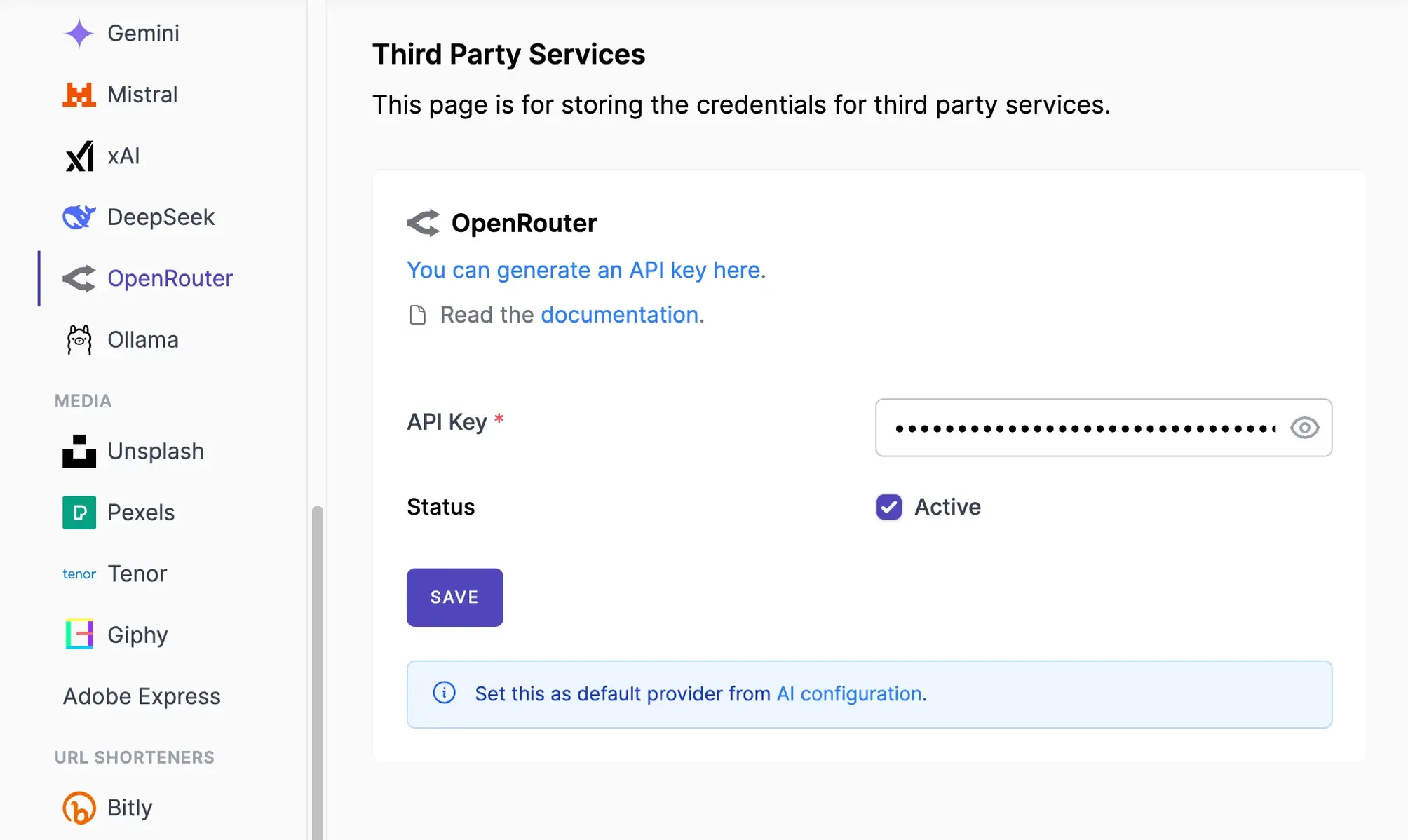
To use OpenRouter, you need an API key. If you don't have one, generate a new one by visiting the OpenRouter Keys page. Follow the instructions there to obtain your API key.
- Navigate to Admin Console -> Services
- Click on OpenRouter.
- Insert your API Key
- Make sure the Active label is turned on.
- Save the changes.
Screenshots:
2. Configuring AI Assist
- Navigate to Admin Console -> Settings -> AI
- In the AI settings area, select your AI provider, typically by choosing OpenRouter from the available options.
- Select the Model you want to use.
- You can enter global system instructions that you want the AI assistant to follow. Learn more.
Screenshots:

OpenRouter identifies models with a provider/model slug, such as openai/gpt-4.1-mini, anthropic/claude-sonnet-4.5, or google/gemini-2.5-flash. Mixpost ships with a curated list of popular models, but you can browse the full catalog on the OpenRouter Models page. Pricing and availability are managed by OpenRouter and billed to your OpenRouter account.
3. Done
By following these steps, you can successfully set up OpenRouter and utilize the AI Assist feature on your Mixpost instance.
- Set up Brand Voice — Define your brand's personality and tone per workspace.
- Use AI Assistant Module — Start creating content with AI in the post editor and post activity comments.