Groq Integration Guide
Integrate Groq services to leverage the power of AI Assist, a tool designed to generate and improve text, making your content creation process more efficient and effective.
1. Setting Up
To use Groq services, you need an API key. If you don't have one, generate a new one by visiting the GroqCloud Console. Follow the instructions there to obtain your API key.
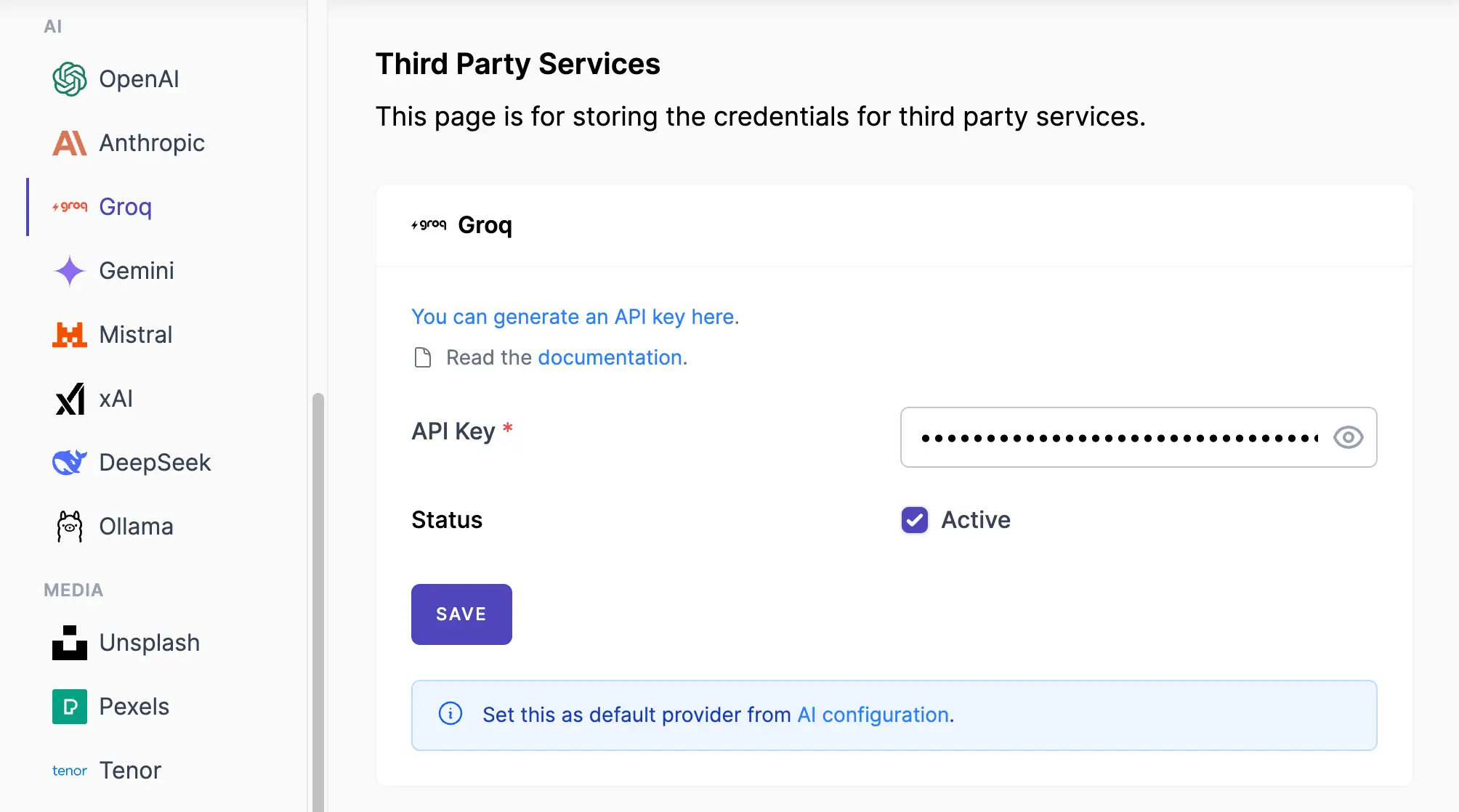
- Navigate to Admin Console -> Services
- Click on Groq.
- Insert your API Key
- Make sure the Active label is turned on.
- Save the changes.
Screenshots:
2. Configuring AI Assist
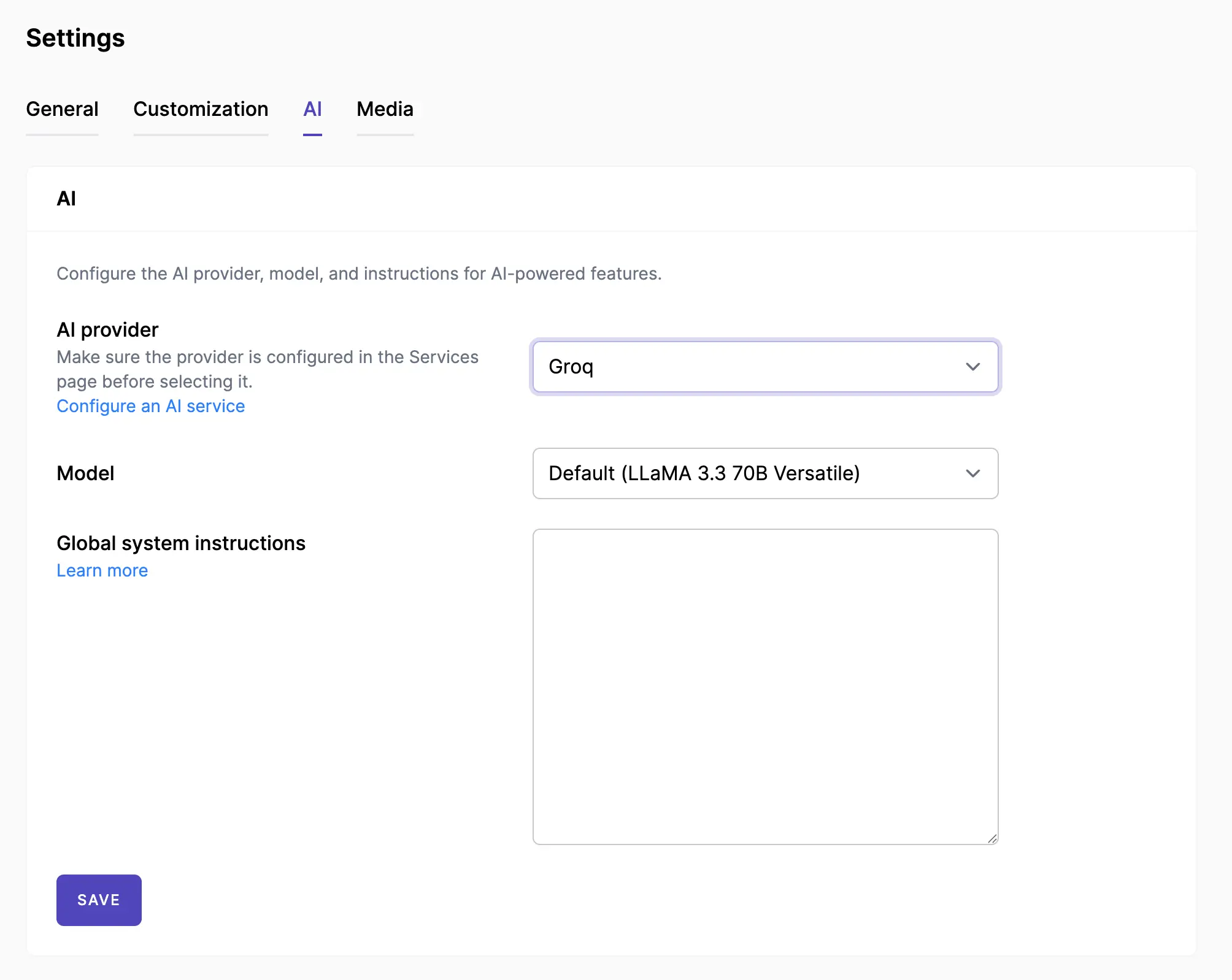
- Navigate to Admin Console -> Settings -> AI
- In the AI settings area, select your AI provider, typically by choosing Groq from the available options.
- Select the Model you want to use.
- You can enter global system instructions that you want the AI assistant to follow. Learn more.
Screenshots:
3. Done
By following these steps, you can successfully set up Groq services and utilize the AI Assist feature on your Mixpost instance.
- Set up Brand Voice — Define your brand's personality and tone per workspace.
- Use AI Assistant Module — Start creating content with AI in the post editor and post activity comments.