Facebook & Instagram Integration
To post on Facebook and Instagram, you need to create and configure a Facebook application, as both social networks are owned by Meta. This configuration allows you to connect Instagram through a Facebook Business account (Instagram accounts linked to a Facebook Page).
If you want to connect Instagram standalone (without Facebook), see the Instagram standalone integration guide.
1. Create a Developer account
To create a Facebook app, you must first have a Facebook developer account. If you don't already have one, go to the Facebook for Developers website and click Get Started in the top right corner. Follow the instructions to sign up for a developer account.
2. Create a new app
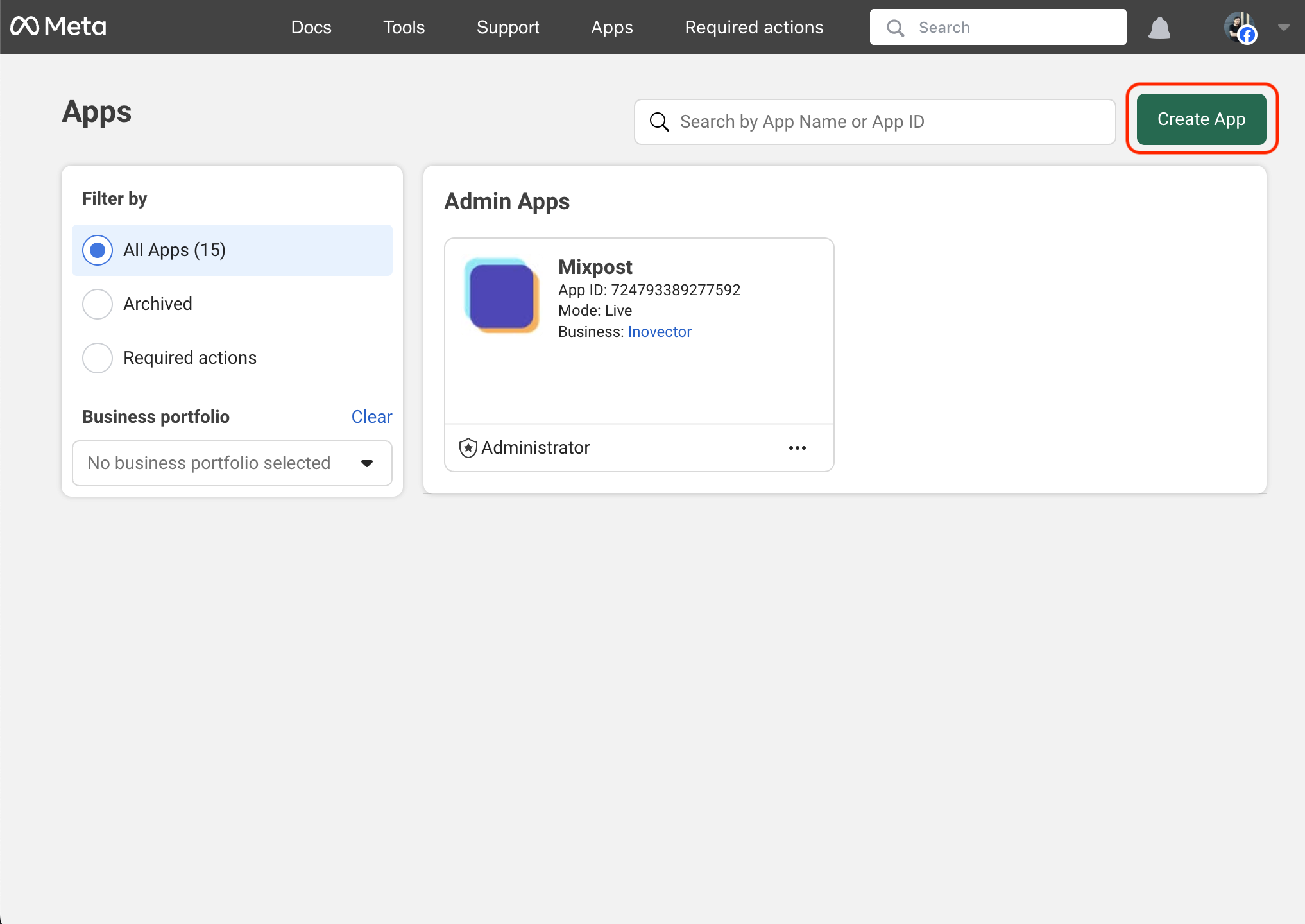
Once you have a developer account, go to the Facebook Developer Dashboard and click Create App in the top right corner.
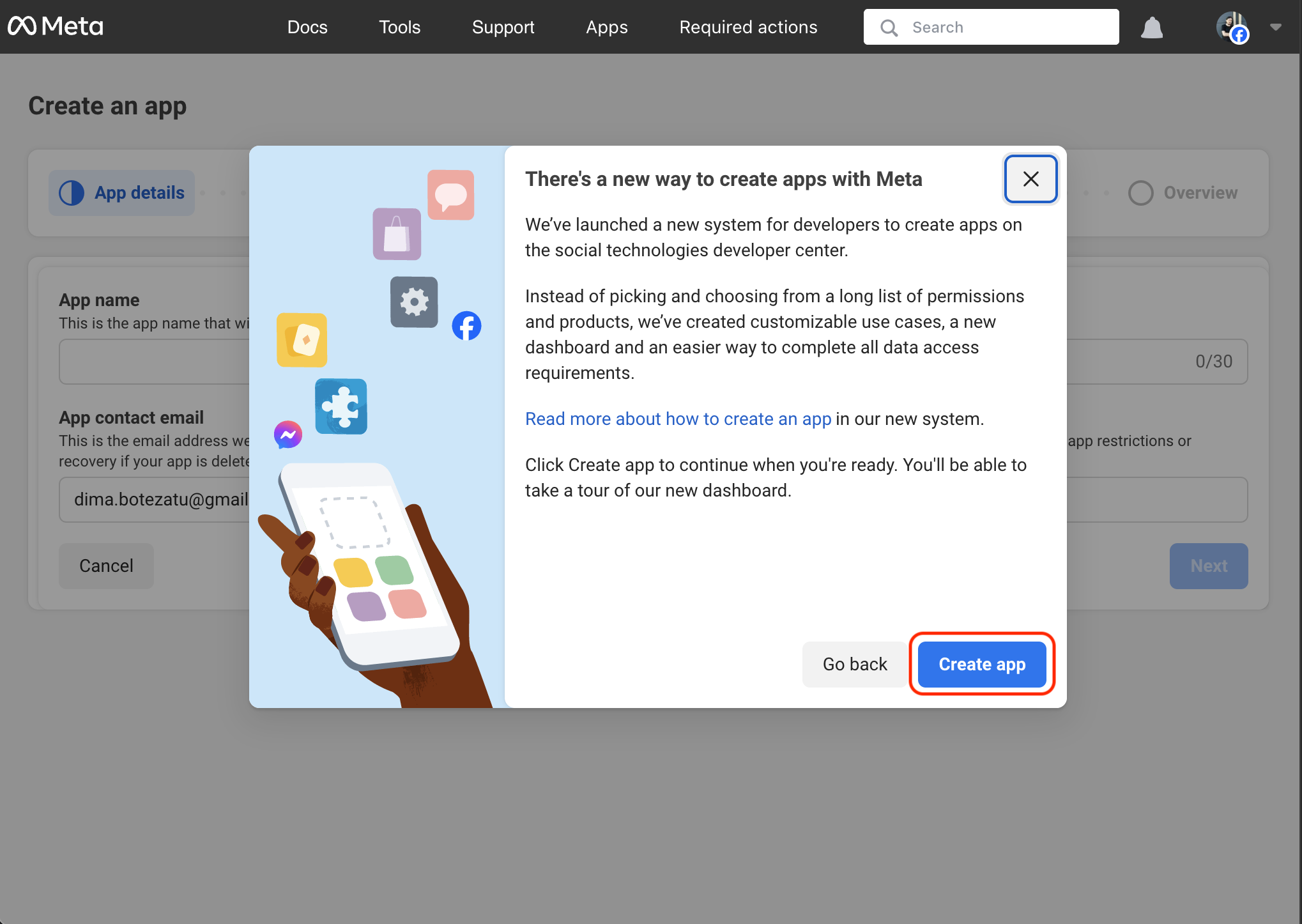
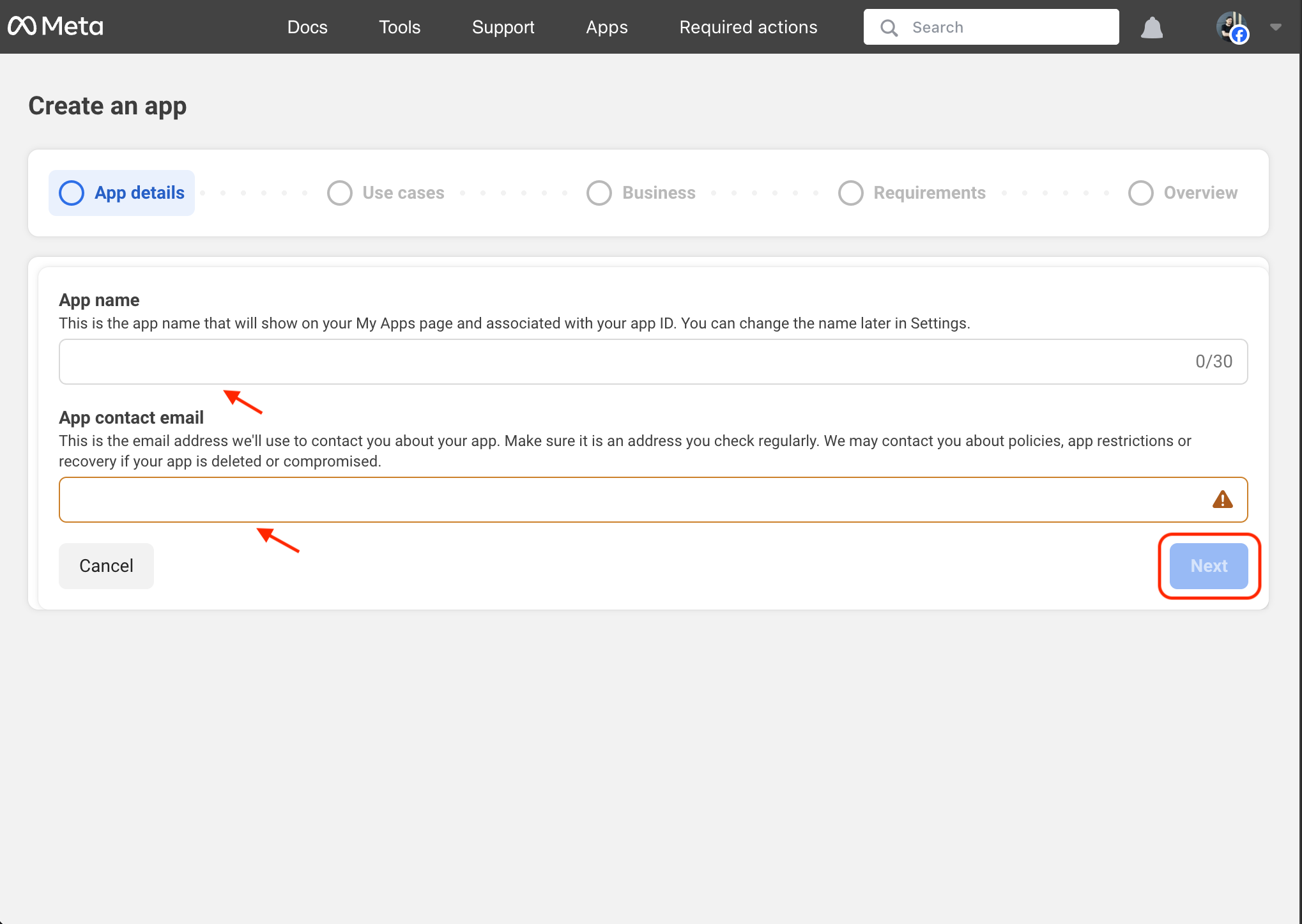
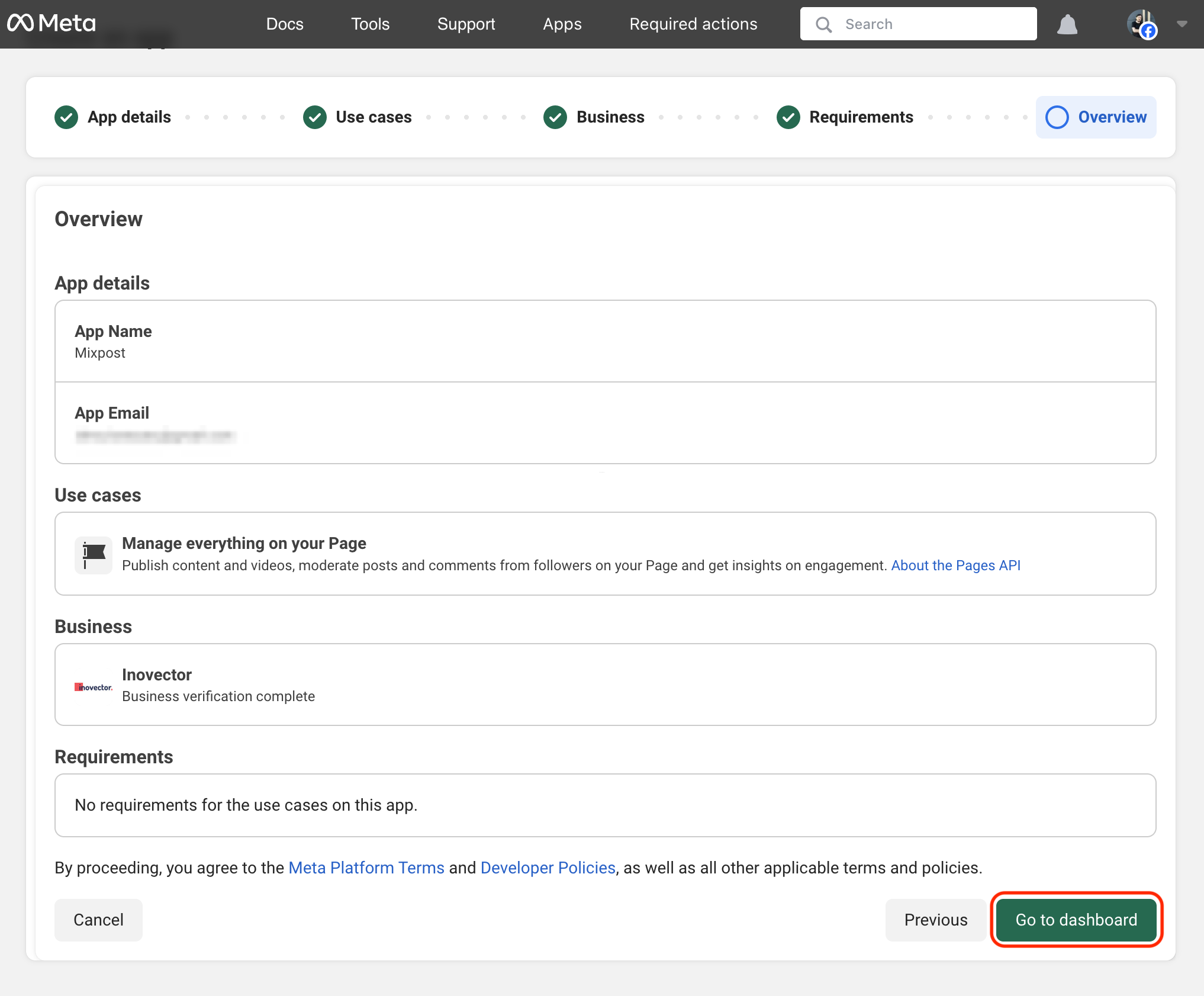
- Enter your application’s name and your email address.
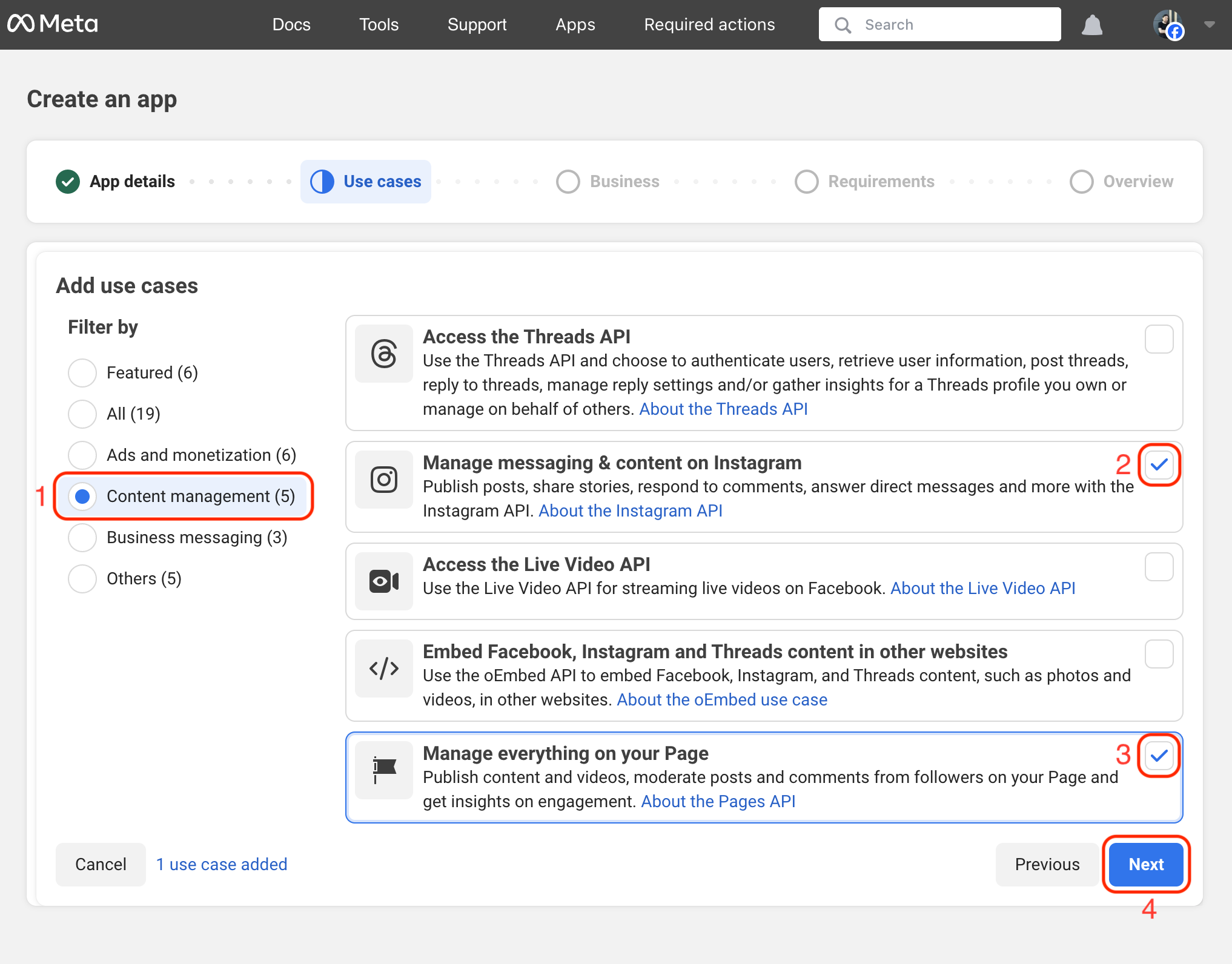
- Select Content management as the use case filter.
- Select Manage everything on your Page and Manage messaging & content on Instagram as the use case.
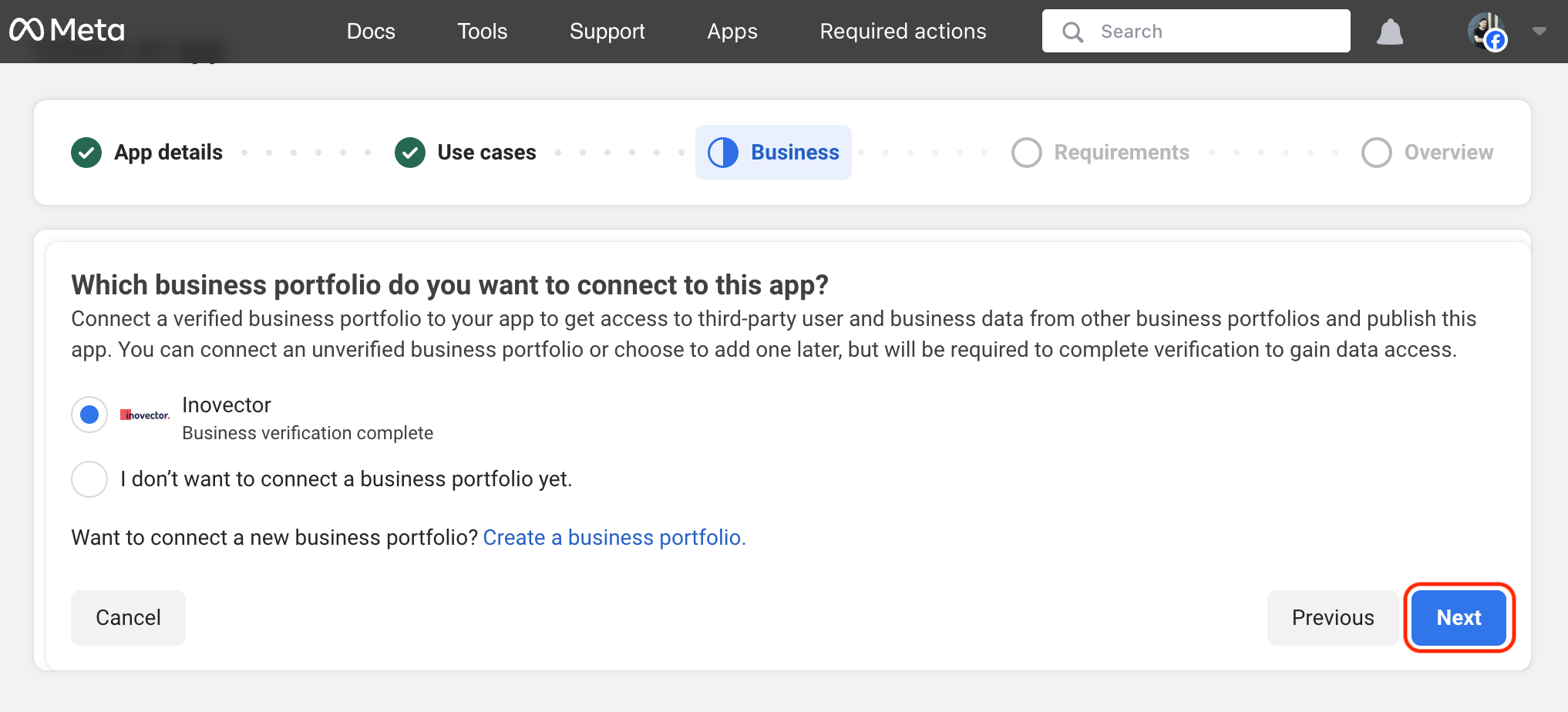
- Select your business portfolio.
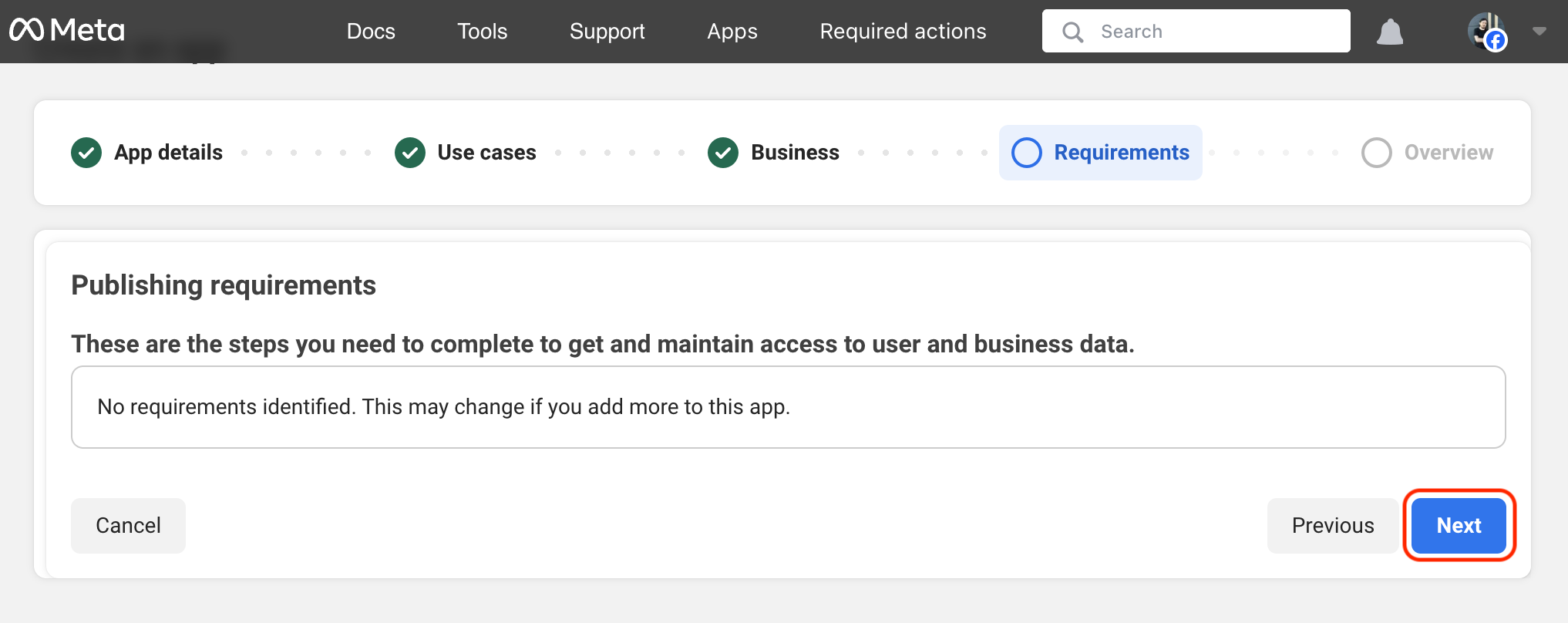
- Review the details and click the Go to dashboard button.
Screenshots:
3. Configure redirect URIs
After creating your app, you’ll land on the Dashboard page.
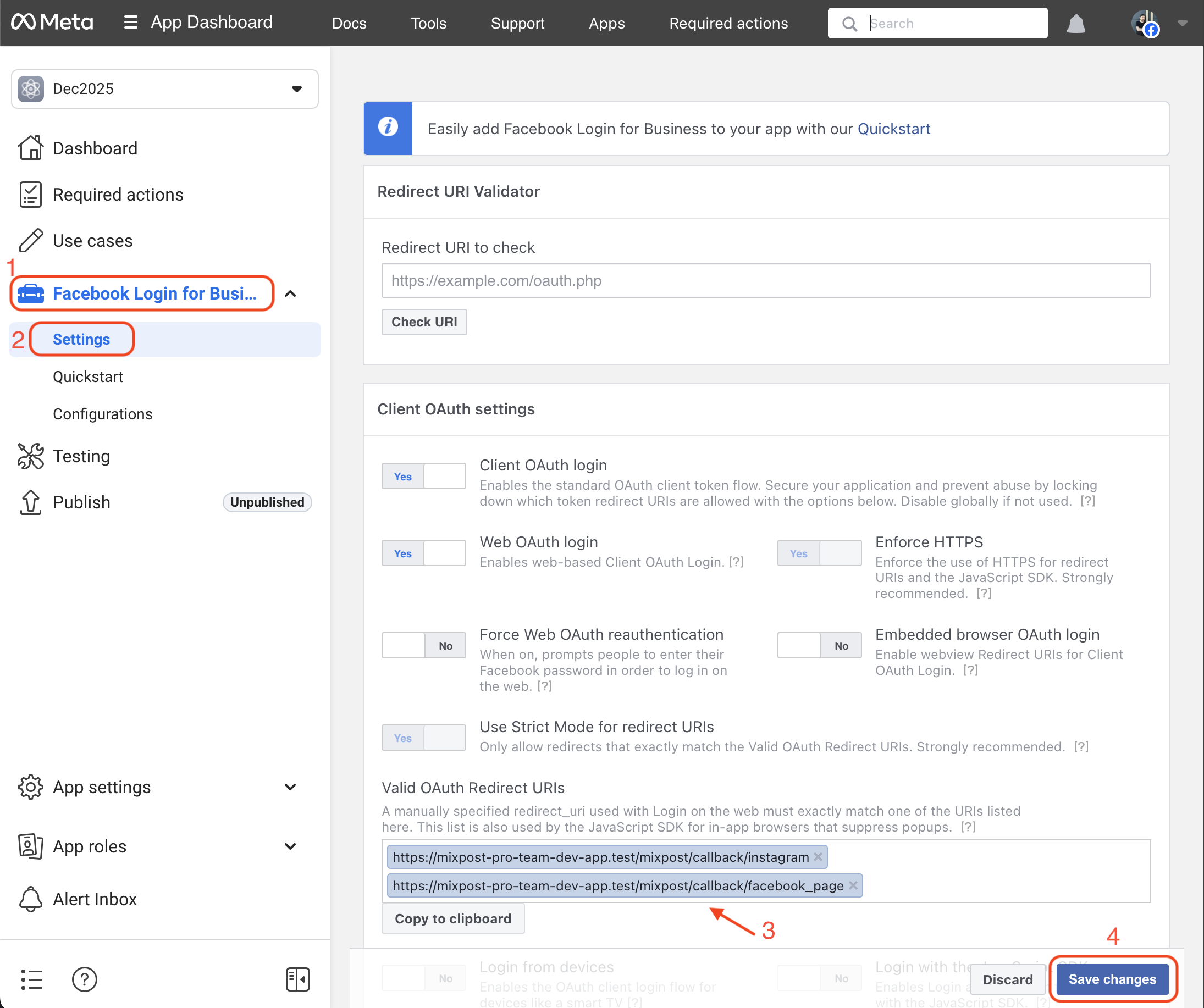
- Select the Settings option under the Facebook Login for Business in the left sidebar.
- Go to the Valid OAuth Redirect URIs field and enter the following redirect URIs:
https://example.com/<MIXPOST_CORE_PATH>/callback/facebook_page
https://example.com/<MIXPOST_CORE_PATH>/callback/instagram
Replace <MIXPOST_CORE_PATH> with your specified MIXPOST_CORE_PATH. If you have not altered the MIXPOST_CORE_PATH environment variable, use the default value: mixpost.
Note: For the Lite package, use the value mixpost, if this integration is supported in Lite.
Ensure to save the changes.
Screenshots:
4. App configuration
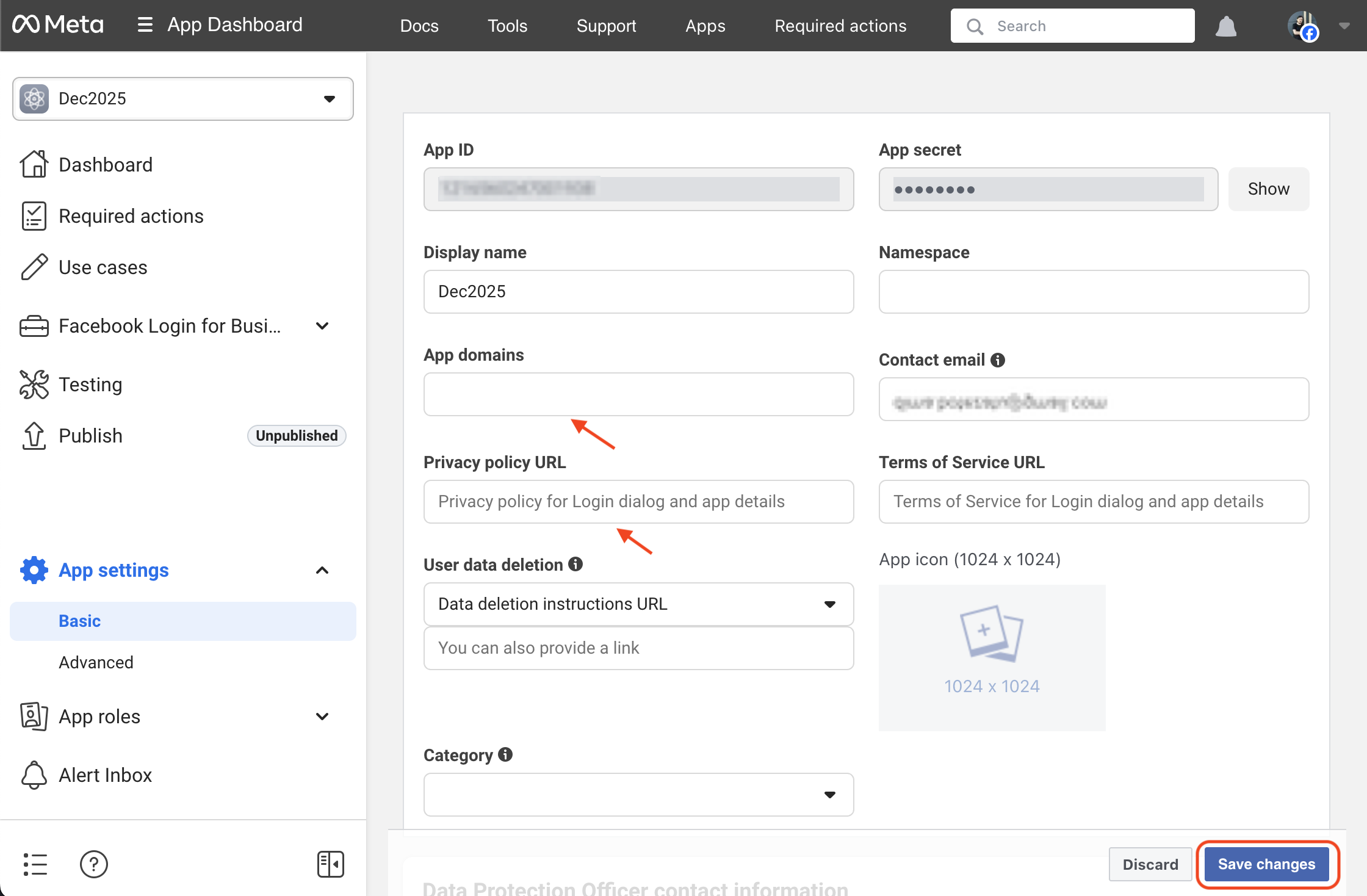
- Select the Basic option under the App Settings in the left sidebar.
- Set up the App Domains (e.g. example.com) and Privacy Policy URL fields.
With Mixpost you can generate Terms of use and Privacy policy pages in seconds. More details. Generation TOS pages is only available for Pro and Enterprise packages.
Screenshots:
5. Copy the credentials to Mixpost
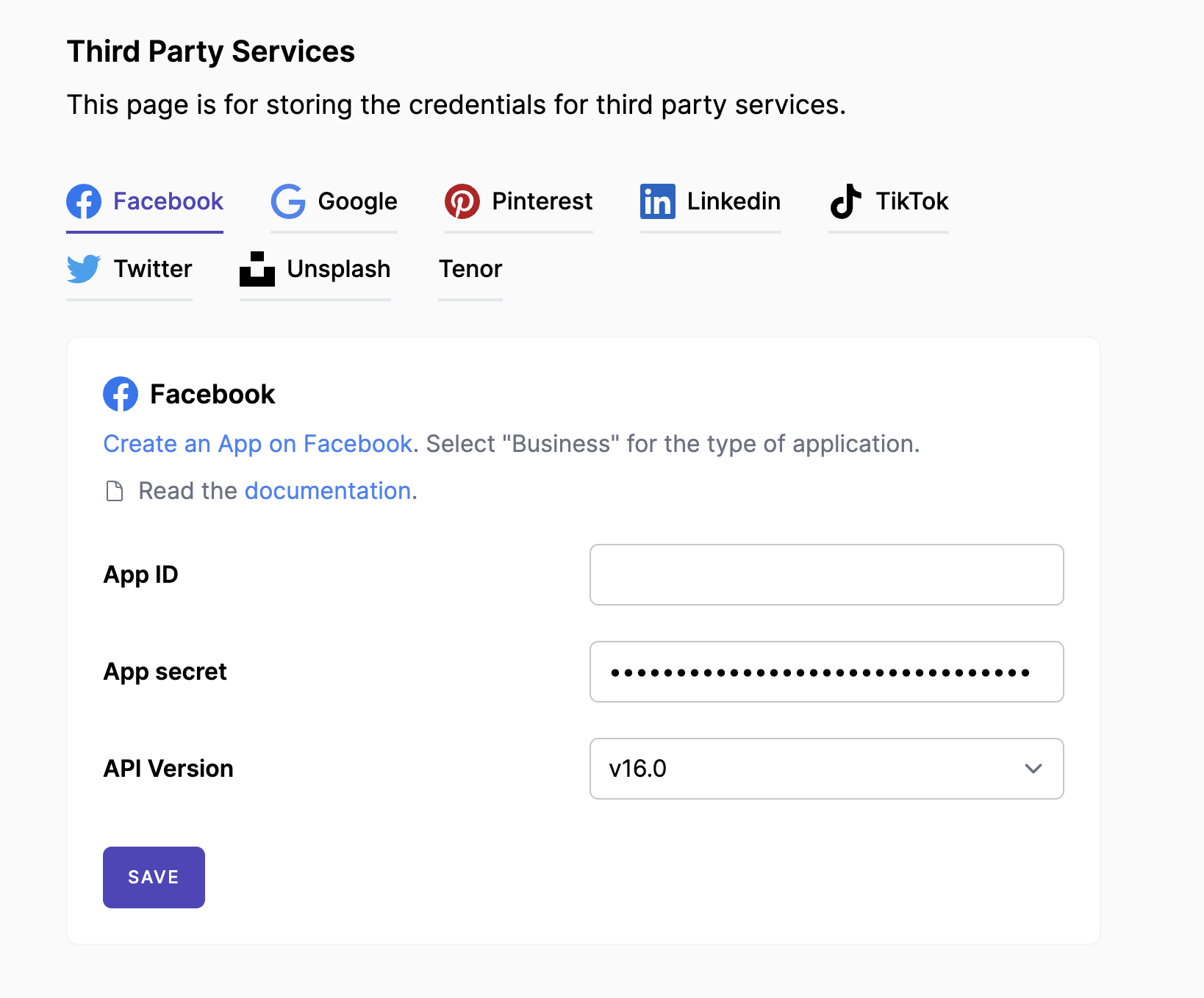
In the App Settings -> Basic page, you will find the App ID and the hidden App Secret. Copy these credentials, then navigate to your Mixpost dashboard and paste them into the Facebook third-party service form.
- Pro and Enterprise
- Lite
Navigate to the User Menu at the bottom left, click Admin Console, and then click on Services from the left sidebar.
Click on Services from the left sidebar.
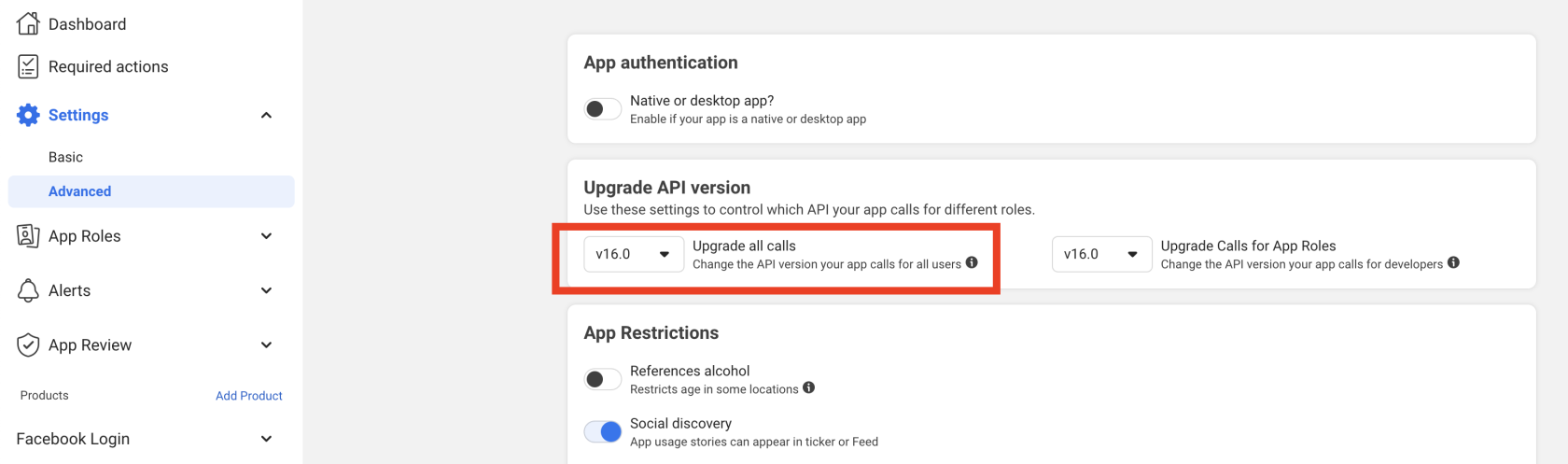
Additionally, select the version of your Facebook application. You can determine the version used by your Facebook app by navigating to App Settings -> Advanced.
Screenshots:
6. Add permissions
Back in the Facebook Developer Dashboard:
-
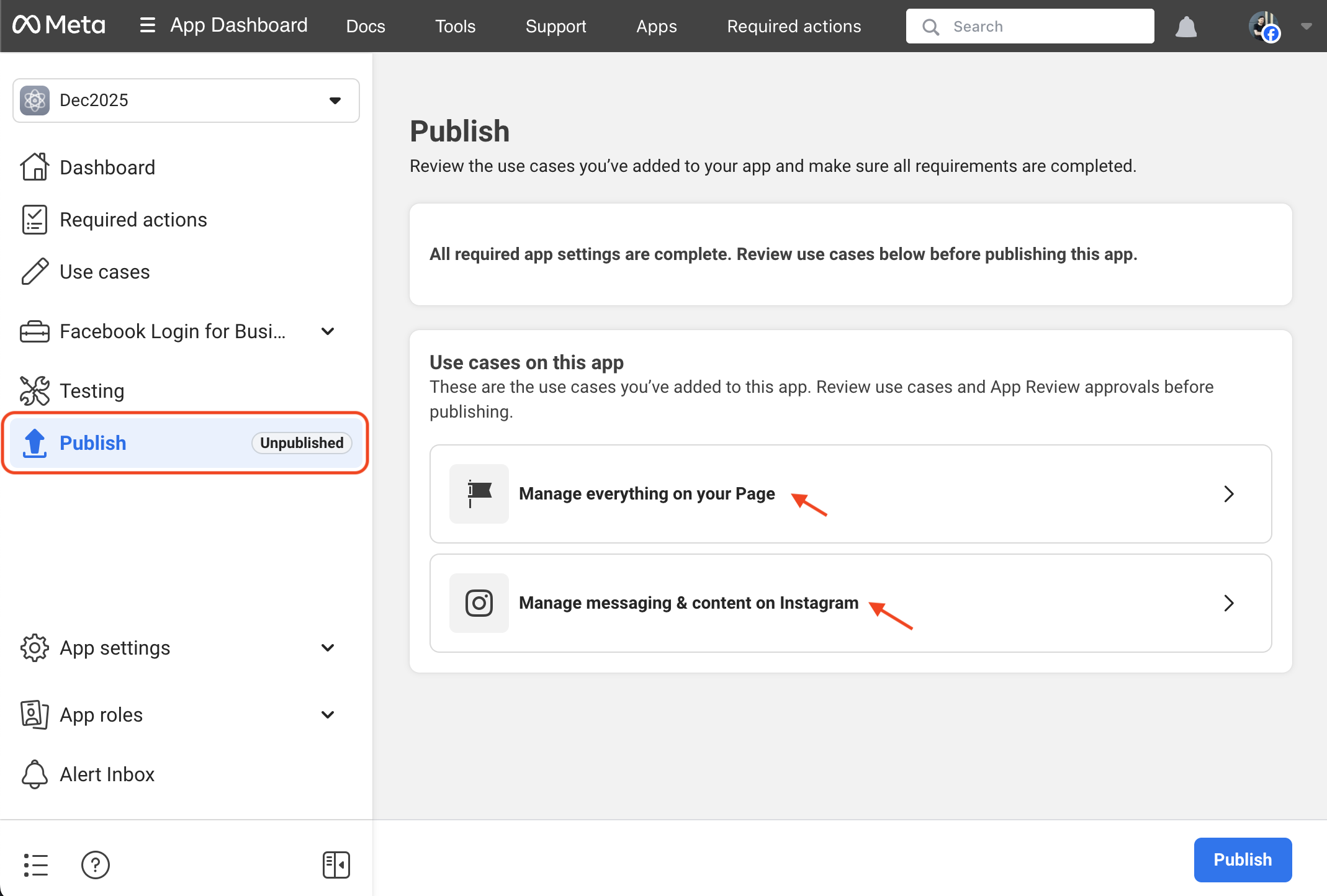
In the left sidebar, click on Publish.
-
There we should add permissons for both uses cases:
- Manage everything on your Page
- Manage messaging & content on Instagram.
-
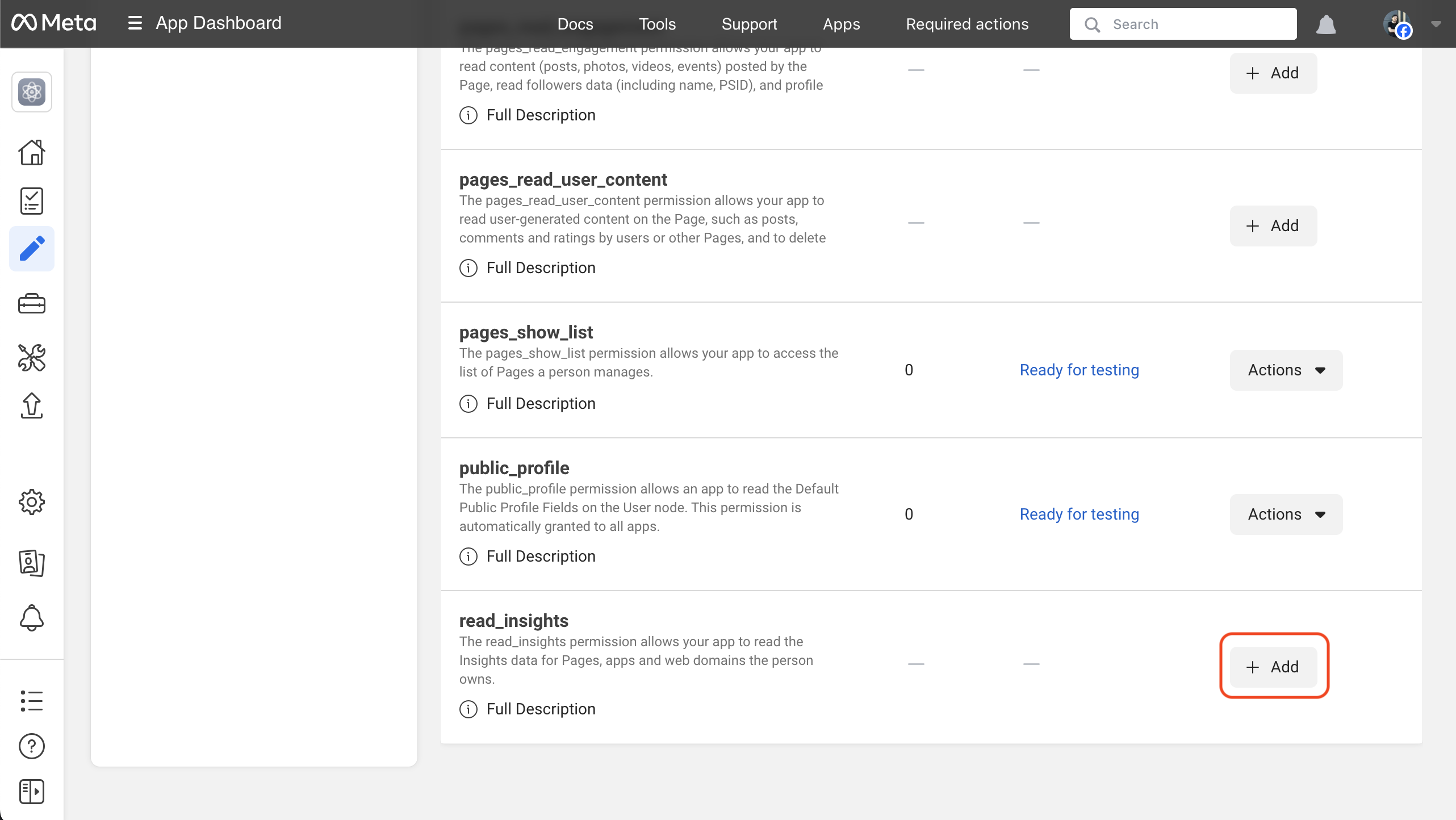
For the Manage everything on your Page use case, add the following permissions:
pages_read_user_contentpages_show_listread_insightspages_manage_postspages_read_engagementpages_manage_engagement
Some of them already added by default. No need to add them again.
-
For the Manage messaging & content on Instagram use case, add the following permissions:
instagram_basicinstagram_content_publishinstagram_manage_insightsinstagram_manage_comments
Screenshots:
7. Testing and verification
You can test by adding your Facebook account to Mixpost. We recommend creating a few test posts to ensure everything is functioning correctly.
- Pro and Enterprise
- Lite
Navigate to a workspace, then select Social Accounts from the left sidebar and click Add Account.
Select Social Accounts from the left sidebar and click Add Account.
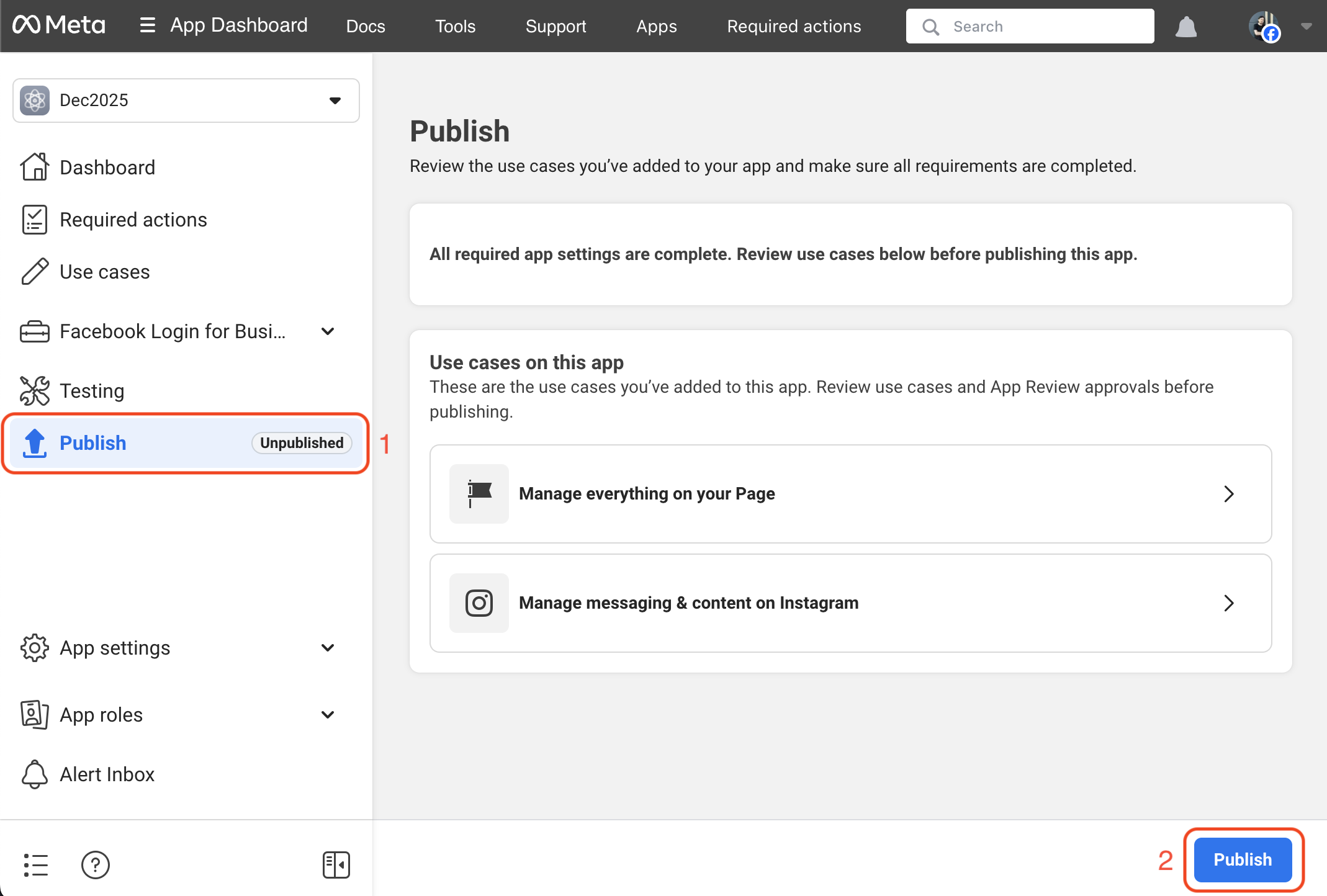
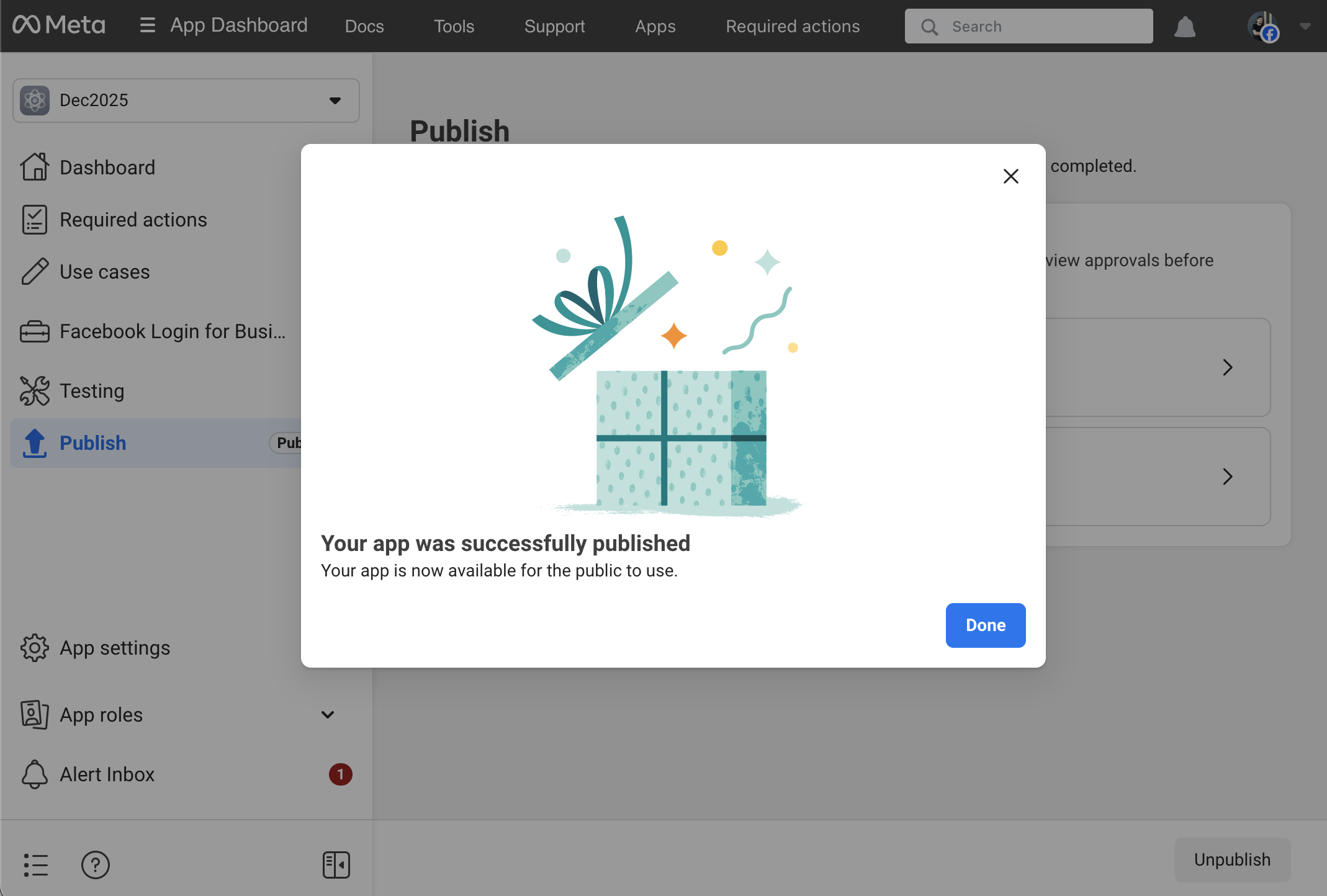
Any data generated while an app is Unpublished, such as posts, can only be seen by role users. However, the data will be visible to non-role users once the app is published. To publish your app, you must go to the Publish section in the left sidebar and click the "Publish" button.
Screenshots: