Stripe Integration Guide
Stripe is a powerful tool for processing payments, it provides an efficient method for generating revenue from your clients. Here's a step-by-step guide to help you integrate Stripe with Mixpost Enterprise and get started with processing payments.
1. Create an account
If you haven't already, head to Stripe's website and sign up for an account.
2. Configure webhooks
2.1 Webhook URL
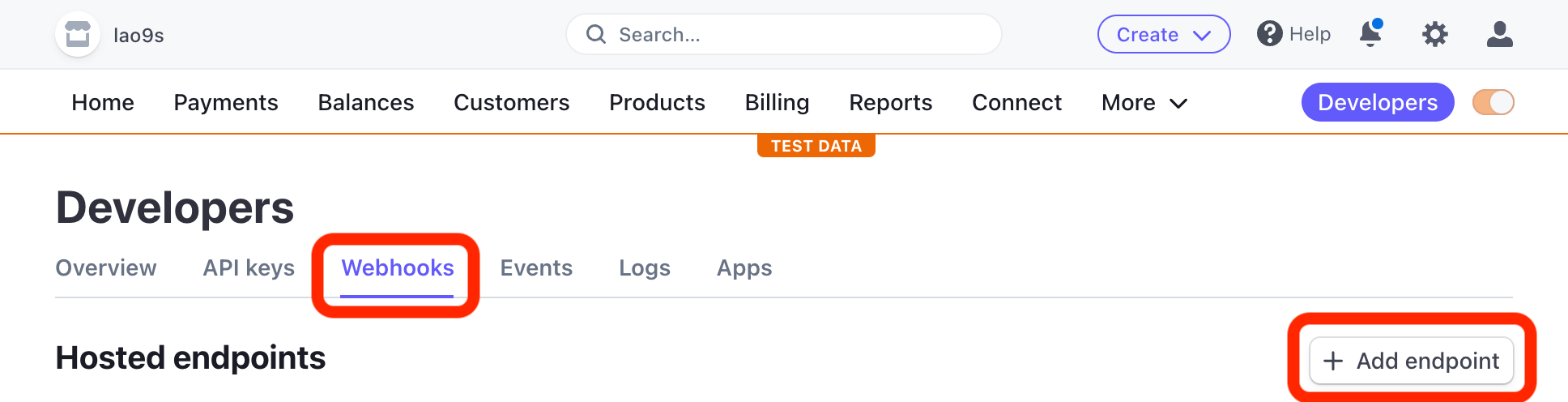
From Stripe's dashboard, go to Developers -> Webhooks and click on Add endpoint.
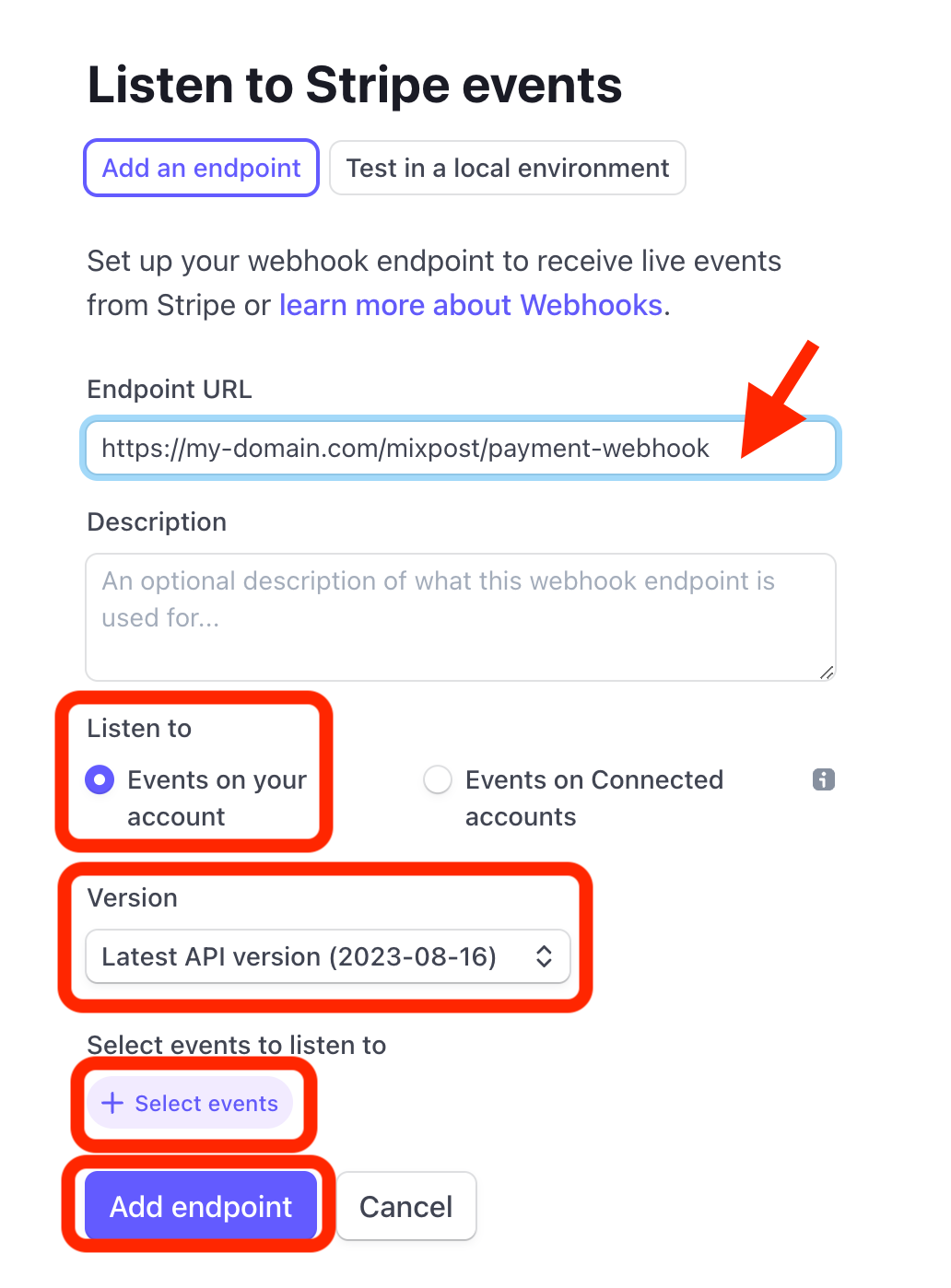
Enter the following URL:
https://example.com/<MIXPOST_CORE_PATH>/payment-webhook
Replace <MIXPOST_CORE_PATH> with your specified MIXPOST_CORE_PATH. If you have not altered the MIXPOST_CORE_PATH environment variable, use the default value: mixpost.
Note: For the Lite package, use the value mixpost, if this integration is supported in Lite.
2.2 Events
- Choose Listen to to Events on your account.
- Choose Version to Latest API version (2023-08-16).
- Add the following events to listen for:
customer.subscription.createdcustomer.subscription.updatedcustomer.subscription.deletedcustomer.updatedcustomer.deletedinvoice.payment_succeededpayment_method.automatically_updated
- Click Add endpoint.
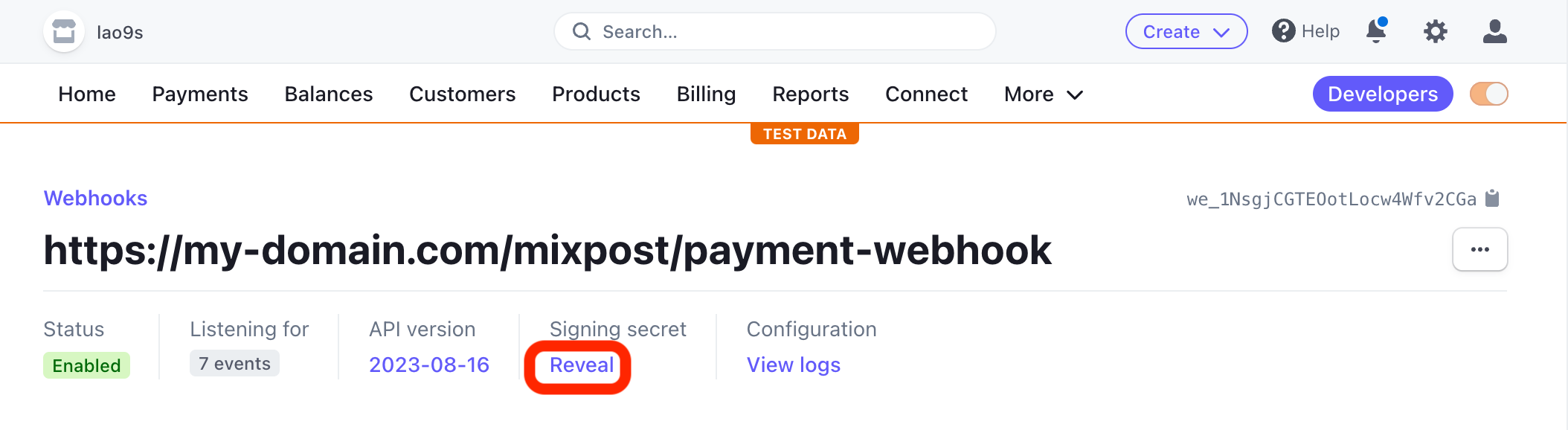
After adding the endpoint, click on Reveal link to expose your Signing secret. You should copy it somewhere safe. We will need it later.
Screenshots:

3. Get credentials
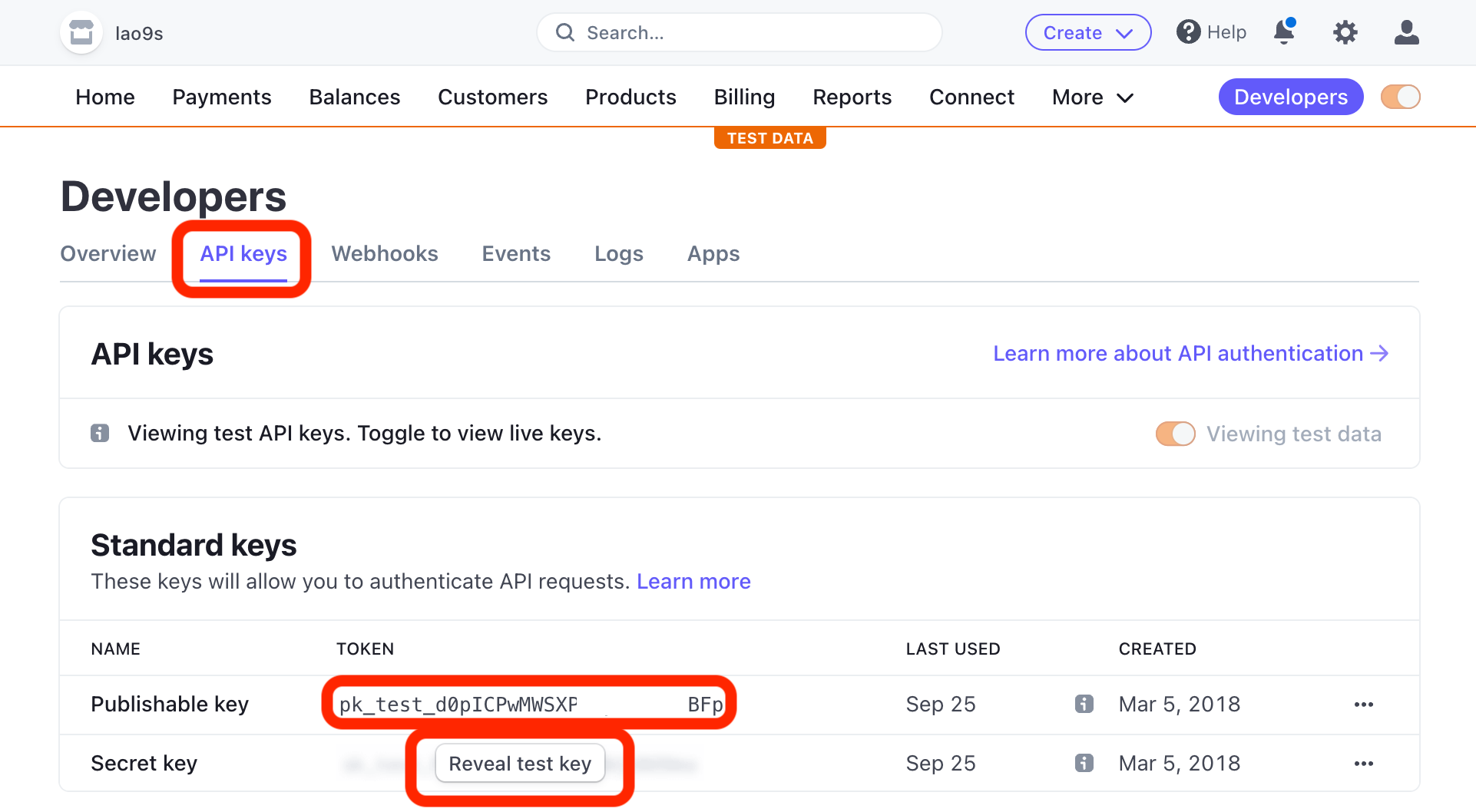
- From Stripe's dashboard, go to Developers -> API Keys.
- You will find two keys there: a Publishable Key and a Secret Key. Both are necessary for integration.
Always keep your Secret Key confidential.
Screenshots:
4. Copy the credentials to Mixpost
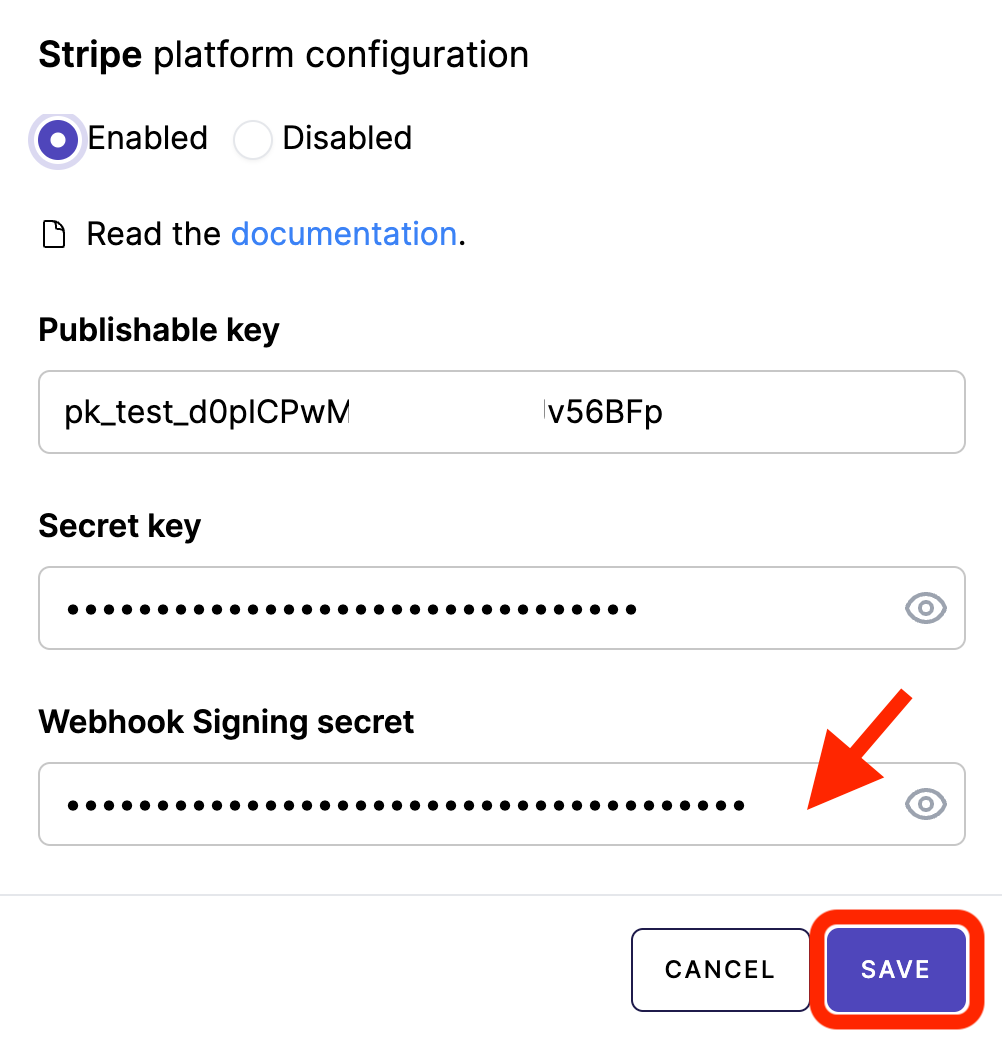
Once you have Publishable Key, Secret Key, and Signing secret, navigate to your Mixpost dashboard and enter these credentials into the Stripe payment platform section. Make sure to select the Enabled option.
Navigate to the User Menu at the bottom left, click on Enterprise Console, then select Settings from the left sidebar, and finally click on Payment Platforms.
Screenshots:
5. Add pricing plans
We are adding all the necessary pricing plans in both Stripe and Mixpost dashboard.
5.1 Add products in Stripe
- Navigate to the Products section in your Stripe Dashboard.
- Click the Add product button.
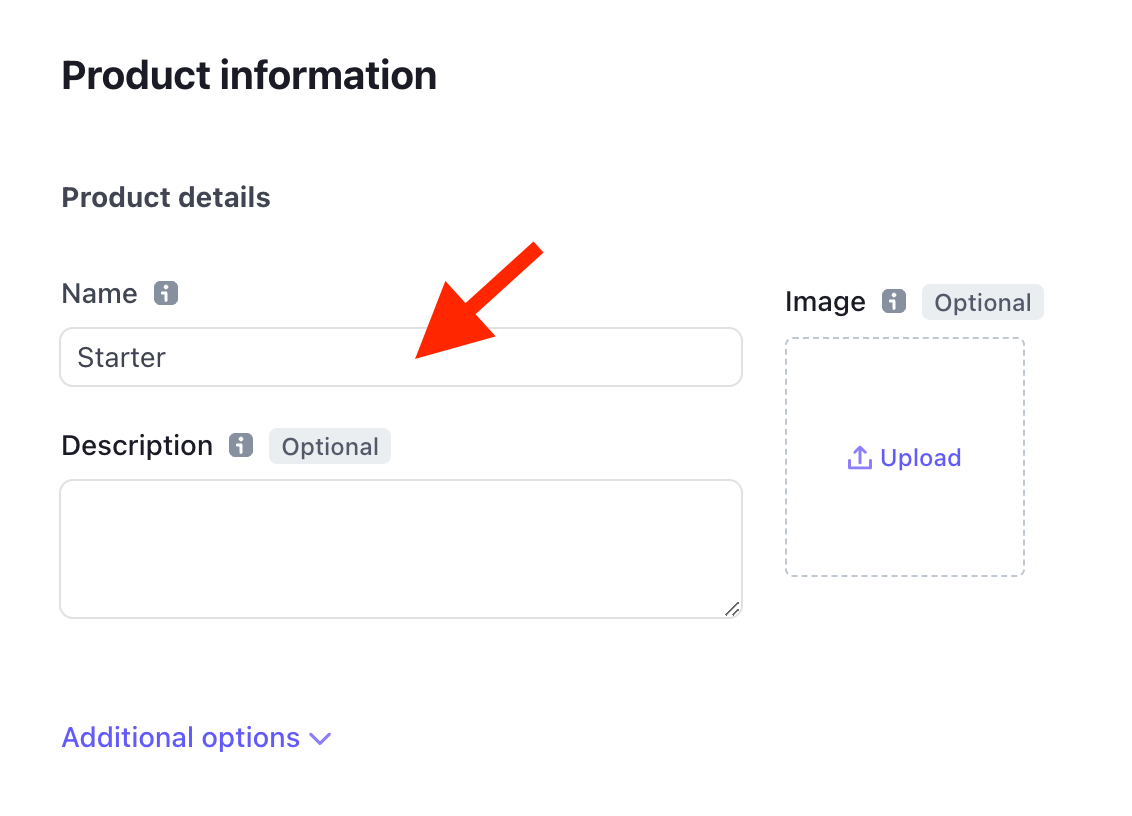
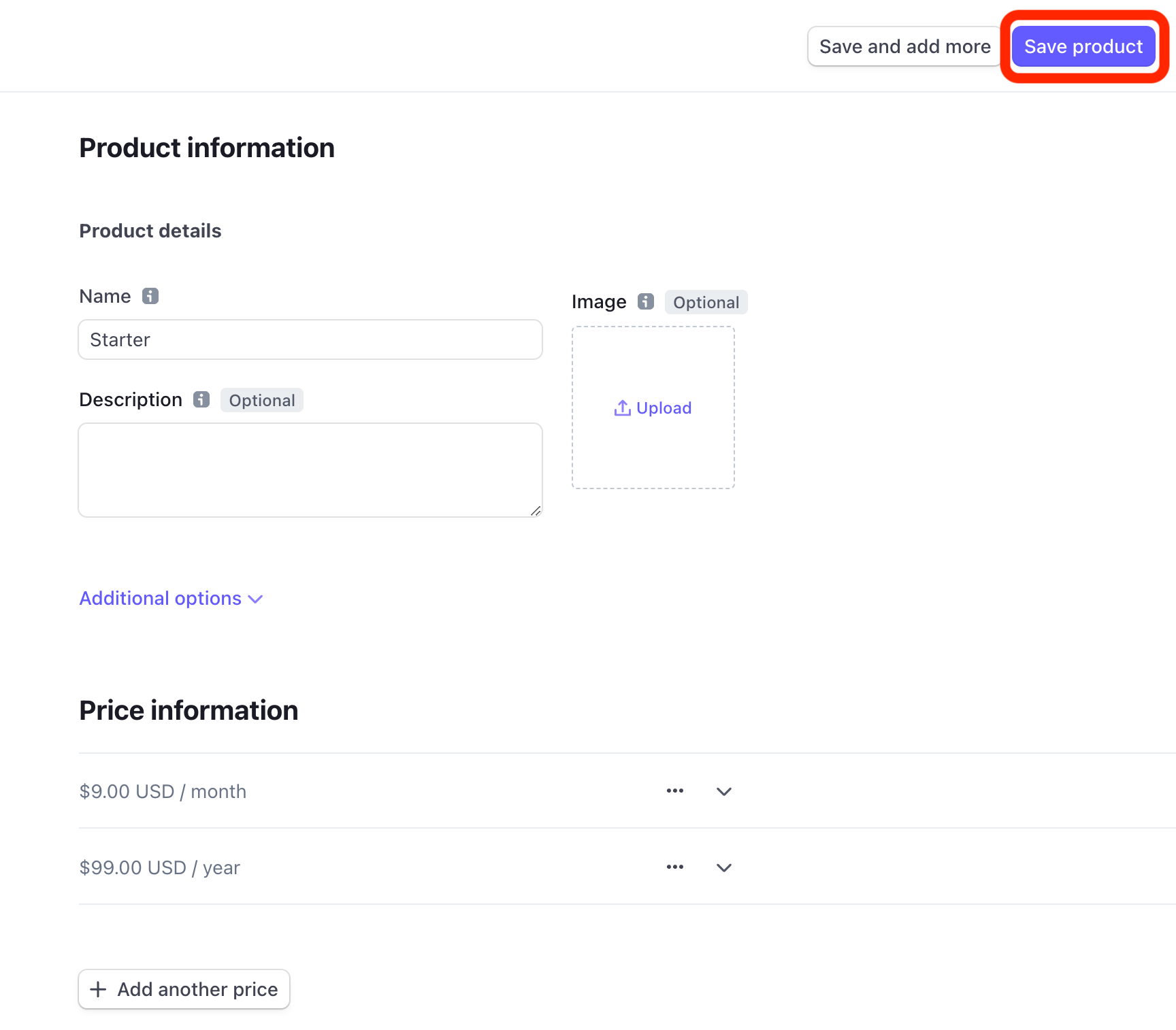
- Enter a plan name, e.g Starter.
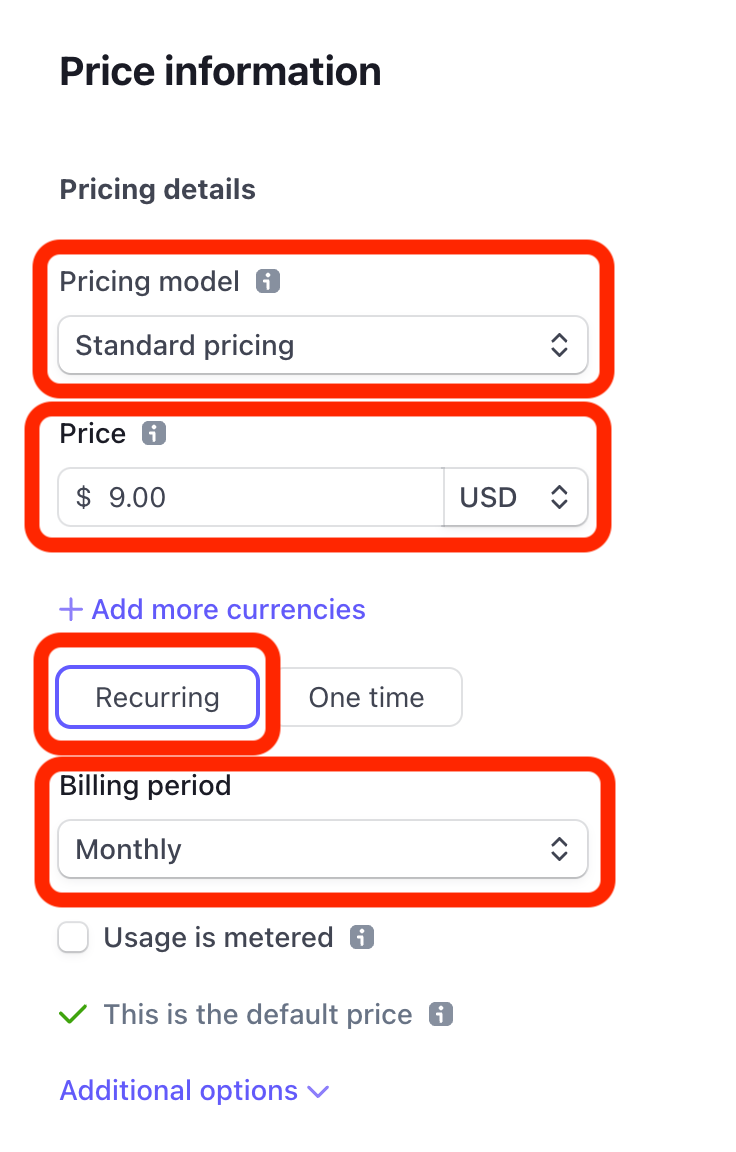
- Move to the Price information section.
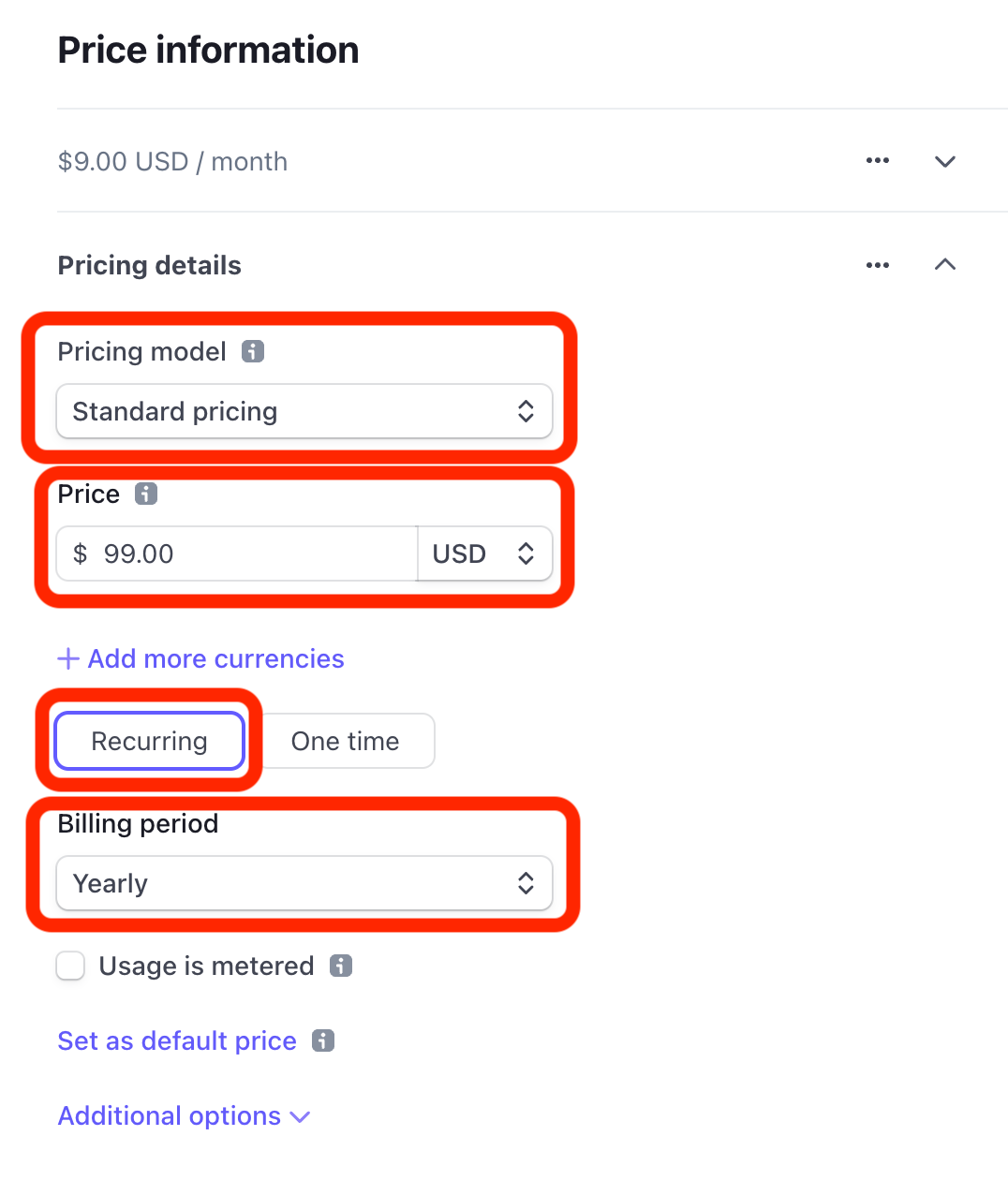
- Choose the Standard pricing model.
- Set the plan price, for example, $9.00.
- Choose Recurring for the type of payment.
- Select the Billing period. Mixpost supports only Monthly or Yearly billing periods.
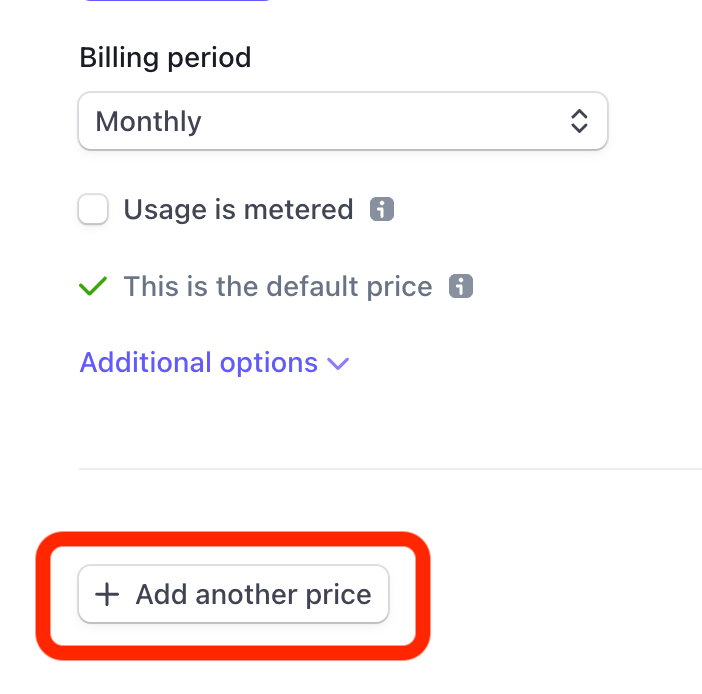
- If you want to offer both Monthly and Yearly billing options for your plan, click on Add another price to set up additional pricing.
- Save the product.
Screenshots:

5.2 Sync Stripe products with Mixpost plans
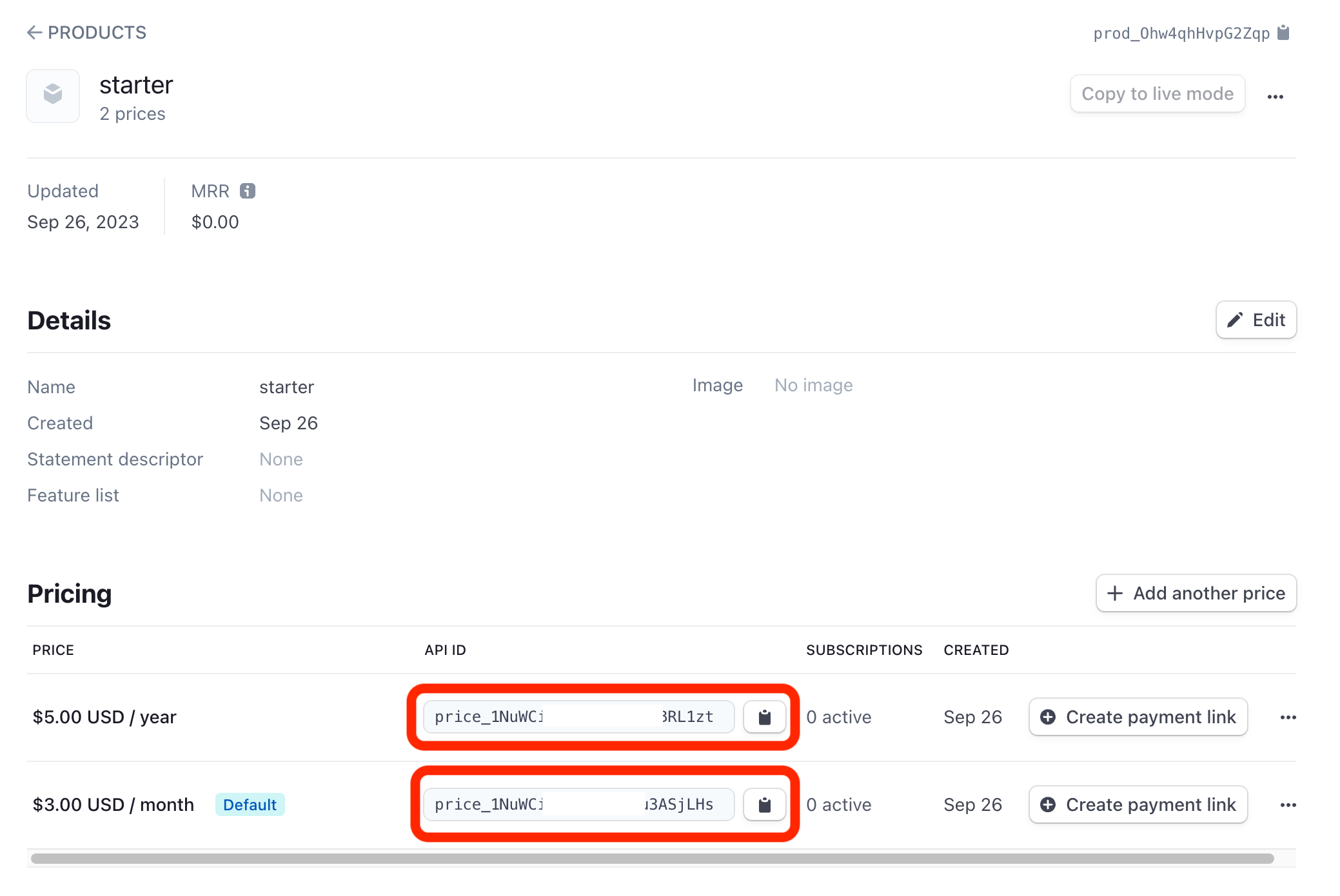
After the product has been created in your Stripe dashboard. You should copy the API ID of each product price to your created plans in the Mixpost Dashboard. See the instructions.
Screenshots:
6. Tax (optional)
Mixpost exposes two Stripe tax features as options on the payment platform form: Automatic tax and Tax ID collection. Both default to No and must be paired with the matching settings in your Stripe Dashboard to work end-to-end.
6.1 Automatic tax
When enabled, Stripe automatically calculates and applies tax on Checkout and subsequent invoices, based on the customer's billing address.
Stripe Dashboard:
- Go to Settings → Tax.
- Enable Stripe Tax.
- Add your origin address and configure tax registrations for every jurisdiction in which you collect tax.
- Set a tax category (product tax code) on each of your products.
Mixpost: in the Stripe payment platform form, set Automatic tax to Yes.
If Stripe Tax is not configured in the Dashboard, Checkout will fail when Automatic tax is enabled. Keep it set to No until your Stripe Tax setup is complete.
6.2 Tax ID collection
When enabled, the Checkout page shows a Tax ID / VAT field. The collected ID is attached to the customer and used on future invoices.
Mixpost: in the Stripe payment platform form, set Tax ID collection to Yes.
To also let customers add or update their Tax ID inside the Billing Portal (after subscribing), enable it in the Dashboard:
- Go to Settings → Billing → Customer portal.
- Under Customer information, toggle on Tax ID.
Repeat for both test and live modes.
6.3 Use Stripe invoice PDF
By default, Mixpost generates and serves the invoice PDF itself. When this option is enabled, the "Download invoice" action on a receipt instead redirects the customer to Stripe's hosted invoice page — a branded webpage that shows the full invoice (line items, tax breakdown, billing address, Tax ID) with a Download invoice button for the Stripe-generated PDF.
Mixpost: in the Stripe payment platform form, set Use Stripe invoice PDF to Yes.
No Dashboard configuration is required — Stripe generates the hosted invoice page for every paid invoice automatically.
7. Testing
- Try to register a user and subscribe to a plan.
- Use Stripe's test card numbers to make sure the subscription is done correctly.
8. Go live
Once you're confident in the integration:
- Switch from using Stripe's test mode to live mode.
- Ensure you've added any necessary pricing plans in both Stripe and your Mixpost dashboard.
- Start onboarding users and generating revenue!
Screenshots:
